
Kouncil is a desktop analyzer for finished audio masters. It measures a track's loudness, dynamics, tone and stereo image, runs it through the codecs streaming services and Bluetooth actually use, and tells you what it found in plain language at four levels of expertise. Everything is judged against a streaming target and a profile built from real commercial masters, so a value is flagged when it is unusual for that kind of music and left alone when it isn't.
It runs entirely on your computer. No audio, results or usage data leave the machine.
This manual follows the order most sessions take. Load a track, add the ones you want to hold it against, choose a target and a profile, read the tabs, listen, ask the Kouncil, then export.
Quick start
There is a lot in Kouncil, and none of it has to be learned before it is useful. These six steps are a whole session. Everything after this chapter is detail for when you want it.
The first time you open Kouncil, one of the characters says hello and asks for a track. Once your first track is analyzed, all four of them show you round the window in fifteen short steps, each pointing at the part it is about. Enter or the right arrow moves on, the left arrow goes back, and Esc ends the tour at any point. Settings > Appearance > Tour of Kouncil plays it again.
Load a track
Drag an audio file onto the window, or press Load (Ctrl+O). WAV, FLAC, MP3, AIFF, OGG, M4A and Opus all open. The charts fill in as the analysis finishes, about 25 seconds for a whole track, and you can start reading before it is done.

Say where it is going
Pick the Target in the header: the platform the master is for (Spotify, Apple Music, a club, broadcast). Then click the profile name next to it and choose the style of music closest to yours. Now the app knows what normal looks like for this track.
Read the Overview
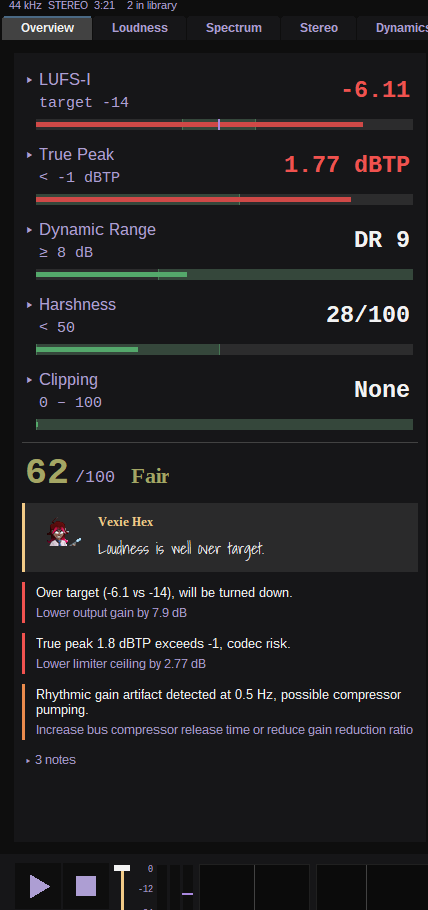
The first tab answers one question: is this ready? Look at the health score, then read the findings under it. They are in order, worst first, and each says what to do about it. Yellow and red numbers are the only ones that need you.
Listen
Press Space to play. Drag on any spectrum chart to hear just that band of frequencies, which turns "something sounds harsh around here" into a number. With a second track loaded, M flips between the two.

Ask the Kouncil
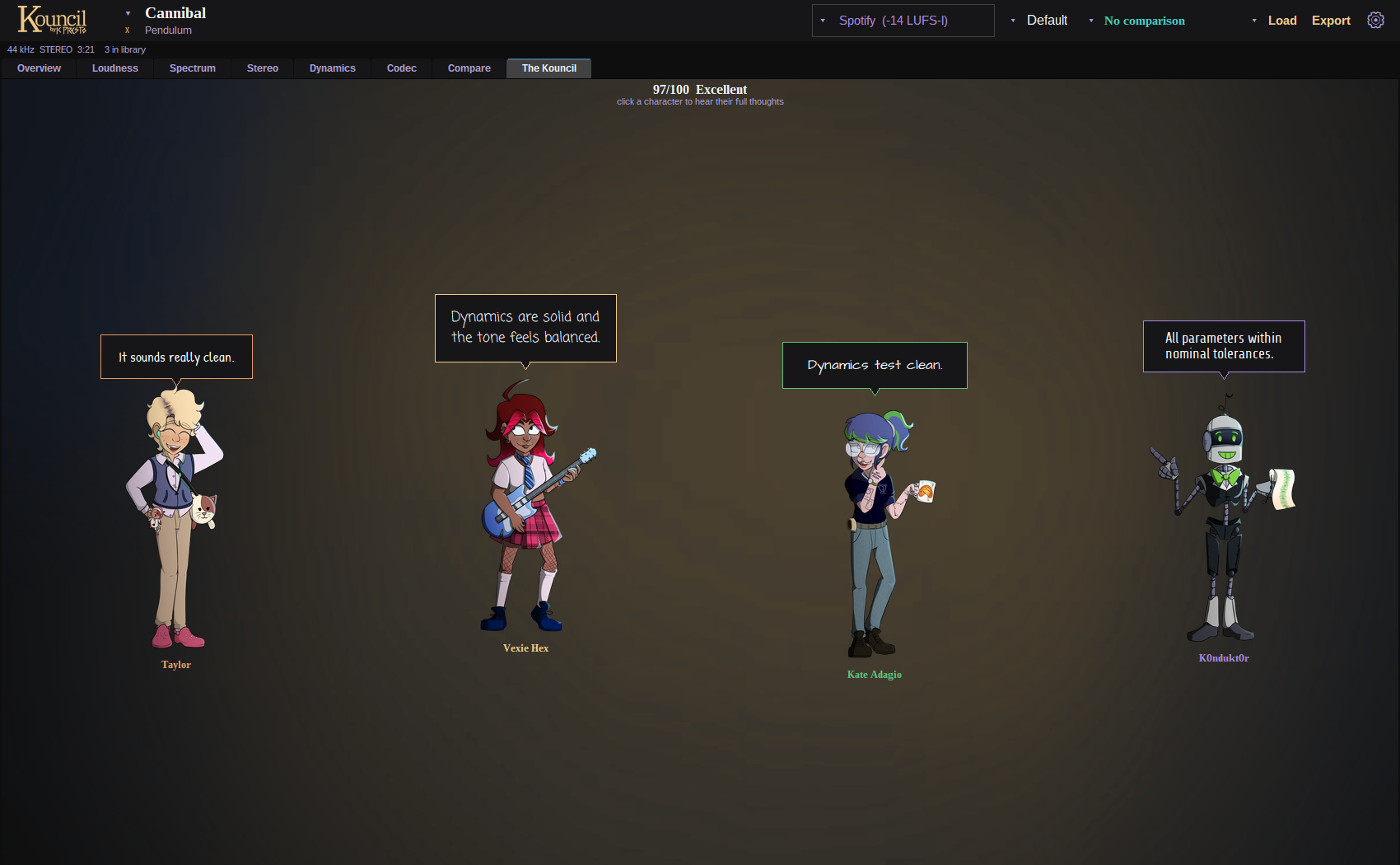
The last tab is four characters who explain what they found, from a listener's plain words to the engineering. Click one to hear them out. Hover over almost anything else in the app and your chosen character explains that too.
Save or share it
Press Export (Ctrl+S) for a picture to post, a PDF report, a text report to paste into a message, or a snapshot that reopens the whole analysis later without the audio.

Taylor
Honestly? Load your song, look at the score, read the first red thing, fix it, load it again. That's most of it.1. Loading tracks
Drop audio files on the window or press Load (Ctrl+O). WAV, FLAC, MP3, AIFF, OGG, M4A / AAC and Opus all open. The arrow beside Load lists recent files. Drop several at once and they are analyzed side by side, with the number running at once held back by how much memory is free.
Analysis takes about 25 seconds a track and arrives in stages. The waveform and level figures land first, the spectral, stereo and dynamics charts follow, and the codec simulation fills in last. Each chart appears as its part of the analysis finishes, so you can start reading and playing before the track is done.

The header: the track, the target (gold), the profile, the compare source, Load, Export and settings.
Every loaded track stays in the library for the session. The title in the header names the current track (title over artist, read from the file's tags). Click it, or the arrow beside it, for the track list. Left and Right step through the library, and Ctrl+R removes the current track.
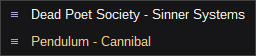
The track list. Drag a row by its grip to reorder.
Kouncil remembers the library between launches. The last session's tracks come back analyzed, with no waiting. If an audio file has moved since, the status row offers Locate audio so playback can find it again. Analysis results never depend on the file still being there.
A .ksnap snapshot (see Exporting) loads the same way as audio and opens instantly, which is how you look at a master someone else analyzed or one whose audio you no longer have.
Render QC
Each file is also checked for problems that have nothing to do with taste. These are faults in the render itself, and they show up in the Overview's findings and in the text report.
| Check | What it catches |
|---|---|
| Sample rate | Below 44.1 kHz, or a non-standard rate |
| Bit depth | 8-bit files, lossy sources passed off as masters |
| Head silence | More than 0.3 s before the music starts |
| Tail silence | More than 3 s of nothing after it ends |
| Premature cutoff | A render stopped while audio was still sounding |
| Render glitches | A buffer of silence, a held sample or a buffer played twice, from a buffer underrun. Needs a lossless file |
| Dropouts | 50 to 500 ms of silence inside the music |
| DC offset spike | A sudden offset jump from a buffer error |
Taylor
These are the "something broke when the file got saved" checks. A click, a gap, the ending chopped off. Nothing to do with whether the song is good.2. Target and profile
Two things decide what counts as a problem.
Target (header, in gold) is where the master is going. It sets the loudness target and the true-peak ceiling, and it is the gold line on the loudness charts and the gold mark on the output meter.
| Target | Loudness | True peak ceiling |
|---|---|---|
| Spotify | -14 LUFS-I | -1.0 dBTP |
| Apple Music | -16 LUFS-I | -1.0 dBTP |
| YouTube | -14 LUFS-I | -1.0 dBTP |
| Tidal | -14 LUFS-I | -1.0 dBTP |
| Amazon Music | -14 LUFS-I | -2.0 dBTP |
| SoundCloud | -14 LUFS-I | -1.0 dBTP |
| Bandcamp | no limit | -0.1 dBTP |
| Club / CD | -9 LUFS-I | -0.3 dBTP |
| Broadcast EBU | -23 LUFS-I | -1.0 dBTP |
| Broadcast US | -24 LUFS-I | -2.0 dBTP |
A loudness target or ceiling of your own can replace the preset's in Settings > Analysis.
Taylor
The target is just which app your song is headed for. They all turn loud songs down to about the same level, so going louder than the target doesn't make you louder. It just gets turned back down.
Vexie Hex
The ceiling is your limiter's output setting. Leave about 1 dB up there, because turning a song into an MP3 or AAC pushes the peaks up a little and a master parked at 0 will clip afterwards.A profile is what masters of one kind measure. For every metric it holds the range that a set of reference tracks falls in, plus their average spectrum. With a profile active, the Target column of every table shows the profile's range for that row, the spectrum chart draws the profile's curve behind yours, and a value is only marked when it falls outside what is normal for that style. A thrash metal master at DR6 is not a problem. A cool jazz master at DR6 is.
Taylor
A profile is "what songs like mine usually measure". So the app stops nagging you about things that are normal for your kind of music.
K0ndukt0r
Per metric a profile stores the reference set's mean, median, trimmed mean, standard deviation, quartiles, percentiles and extremes. Target and range are read from those by the methods chosen for that profile, mean ± 1σ by default. A value is flagged when it lies outside the range, and flagged harder past a second margin.Kouncil ships with 100 profiles measured from 2,499 commercial masters, covering styles from 1920s Delta blues and 1930s big band swing through bebop, Motown, classic rock, punk, thrash, golden age hip hop, Detroit techno, jungle and trip hop to modern mainstream pop and K-pop.
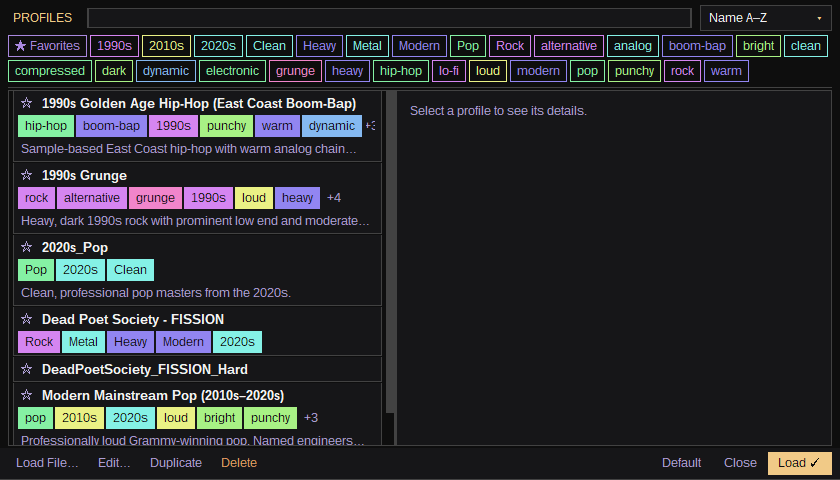
Click the profile's name in the header for the Profile Library.
The Profile Library: search and tags above the list, the selected profile and its targets at the right.
- Search by name, and filter with tag pills and a Favorites pill. Tags are grouped by category (the part before the
/, such asera/1990s), and each category has a color you can change. - Select a profile to see its description, the tracks it was built from, and its targets table. The table shows the headline metrics, or every metric behind "All metrics".
- Edit a profile's name, description and tags, duplicate it, or delete it.
The arrow beside the profile name lists recently used profiles, and Default profile at the end goes back to the default. There is always a profile: until you pick one, the default is it, a general baseline for music of any style.
3. Comparing tracks
Load more than one track and Compare (header) picks what the current track is held against.
- Another track from the library
- Average of the whole library
- Average of others, which is everything except the current track
The choice shows up everywhere at once. Charts draw the compare source as an overlay in the compare color, every table gains a CMP column, and the playback strip grows a second waveform so you can A/B by ear at the same moment in time (see Playback).
With a compare track: an overlay on every chart, a CMP column in every table, a second waveform on the strip.
Typical uses are a master against its reference, a new revision against the last one, and one song against the rest of the album it has to sit on.
The Compare tab shows the whole library together, and is where an album gets checked for cohesion. It is described under The tabs.
4. The tabs
Each tab has tables on the left and charts on the right. Keys 1 to 7 switch between them. The frequency axis on every spectrum chart can be log, mel or linear (Settings > Analysis).
In tables, a value in plain text is in range. Yellow and red mark a problem and are the only colored numbers, so a glance down a column finds what needs attention.
Taylor
White number, you're fine. Yellow, have a look. Red, fix this one.Overview
Answers one question. Is this master ready, and if not, what should be fixed first?
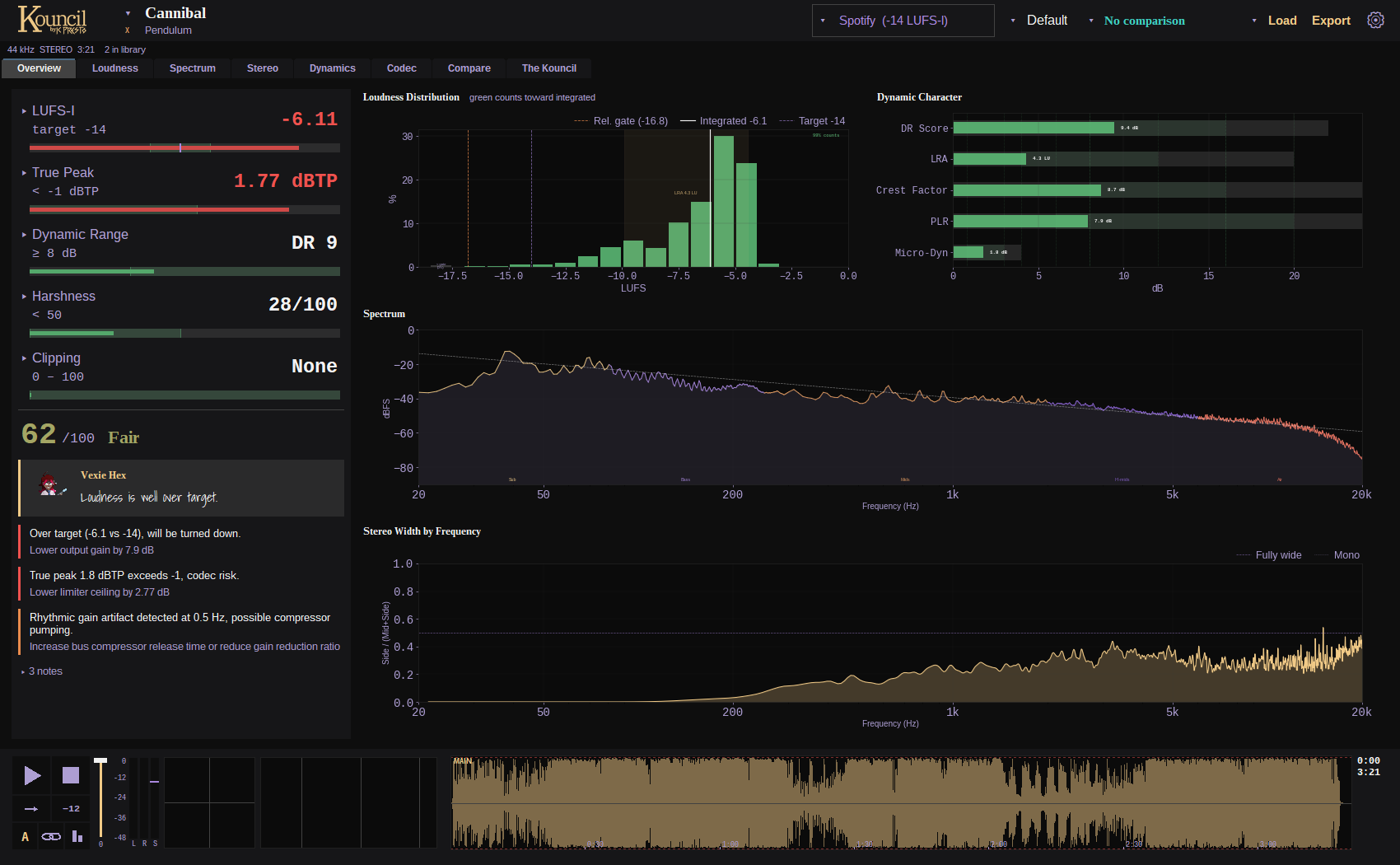
The Overview: headline metrics and the conclusion at the left, the four charts that say the most at the right.
Headline metrics, then the score, the summary and the findings.
The left column is five headline metrics with their targets, then the conclusion. That is a health score out of 100 with a letter grade, a one-sentence summary from your chosen character, and the findings in order of severity. Each finding has a colored bar for how serious it is and a muted line underneath saying what to do about it.
Click a headline metric's name to open the rest of its group under it.
K0ndukt0r
The score starts at 100 and deducts: loudness error up to 25 (45 when it is 10 LU or more off target), true peak over the ceiling 5 per dB up to 20, DR under 8 or 6 costs 14 or 22, clipping 10, 25 or 40 above 250, 2,500 or 25,000 samples a minute, stereo correlation under 0.2 costs 10 and under 0 costs 40, mono bass loss over 4 dB 5 and over 12 dB 15, a tonal balance further from the profile's tracks than nearly all real releases go, in any band and either direction (too bright, dull, boomy, thin, muddy, harsh) up to 20, plus smaller terms for harshness, micro-dynamics, low-volume translation and the worst codec's transient fidelity. A value inside the active profile's range deducts nothing, and neither do the profile's most clipped tenth of releases.The right column is the four charts that say the most about a master at a glance.
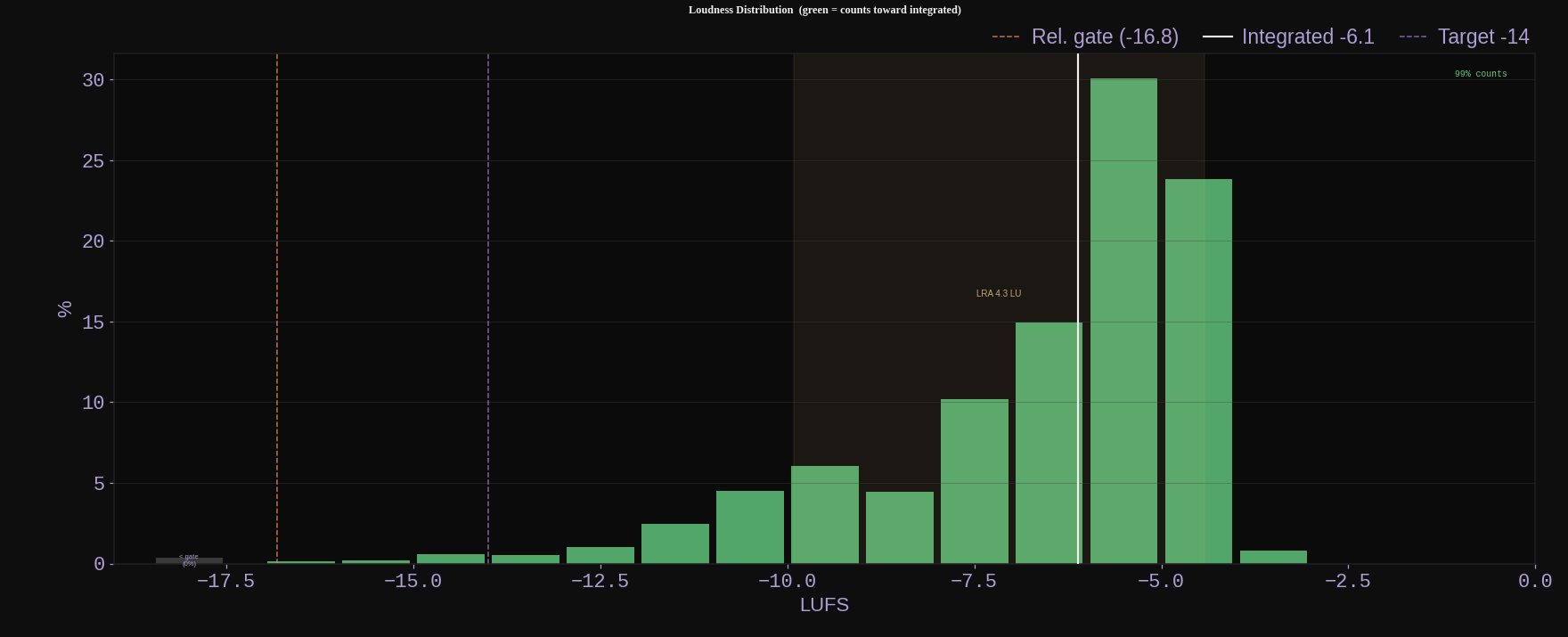
Loudness Distribution. Where the track spends its time, with the target and the integrated level marked.
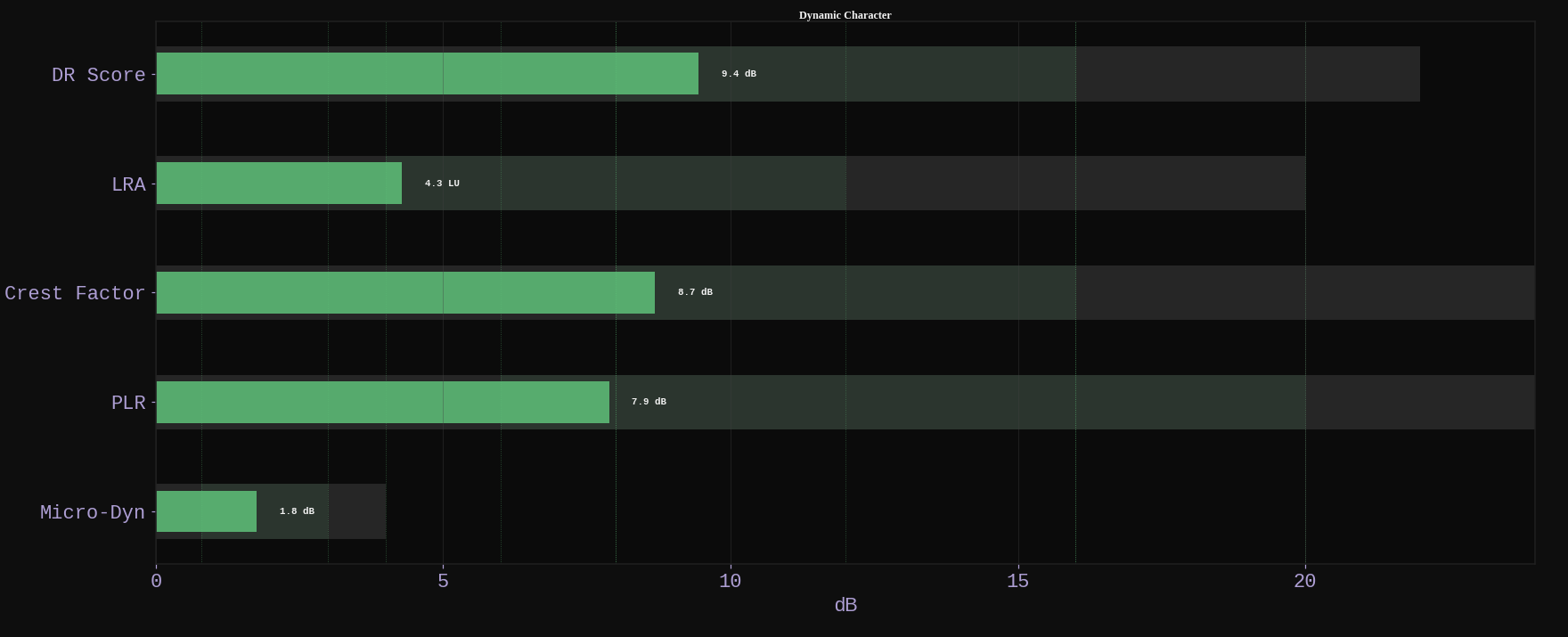
Dynamic Character. DR, loudness range, crest factor, PLR and micro-dynamics against their healthy zones.
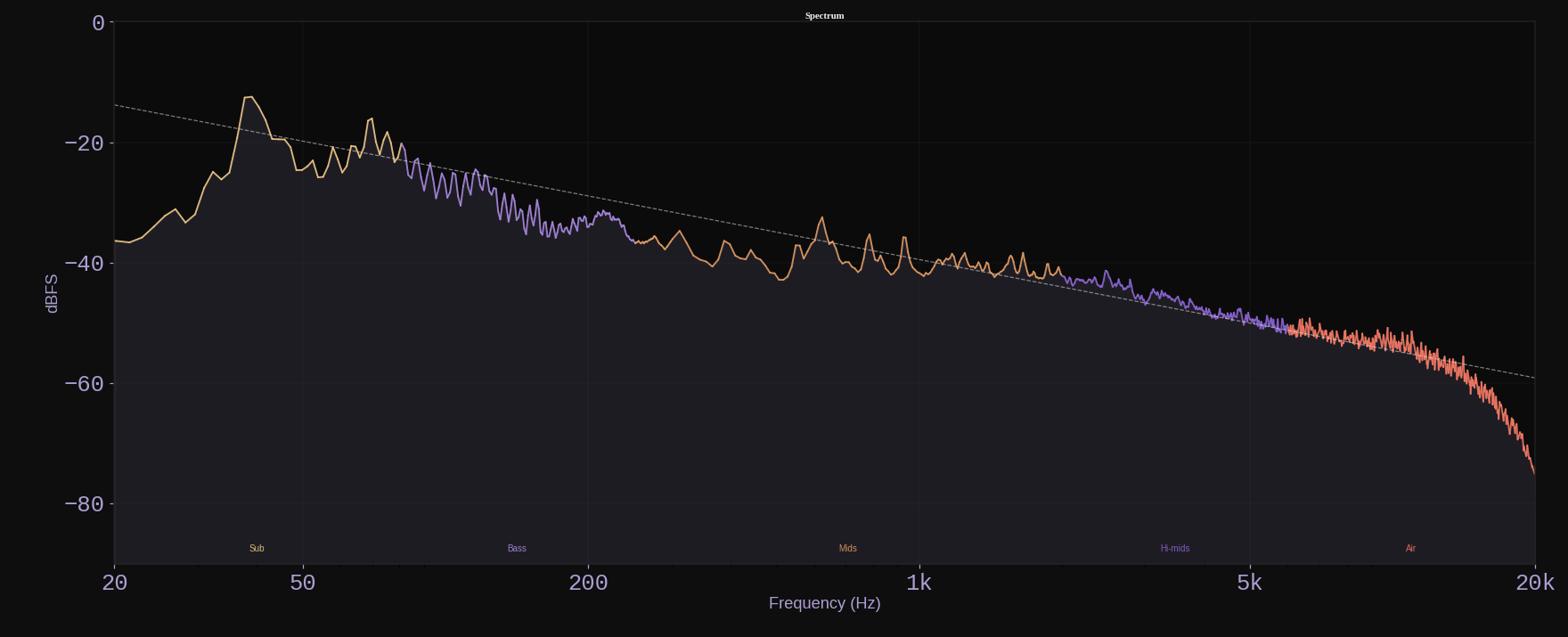
Spectrum. The average spectrum, colored by region from sub to air, with its tilt.
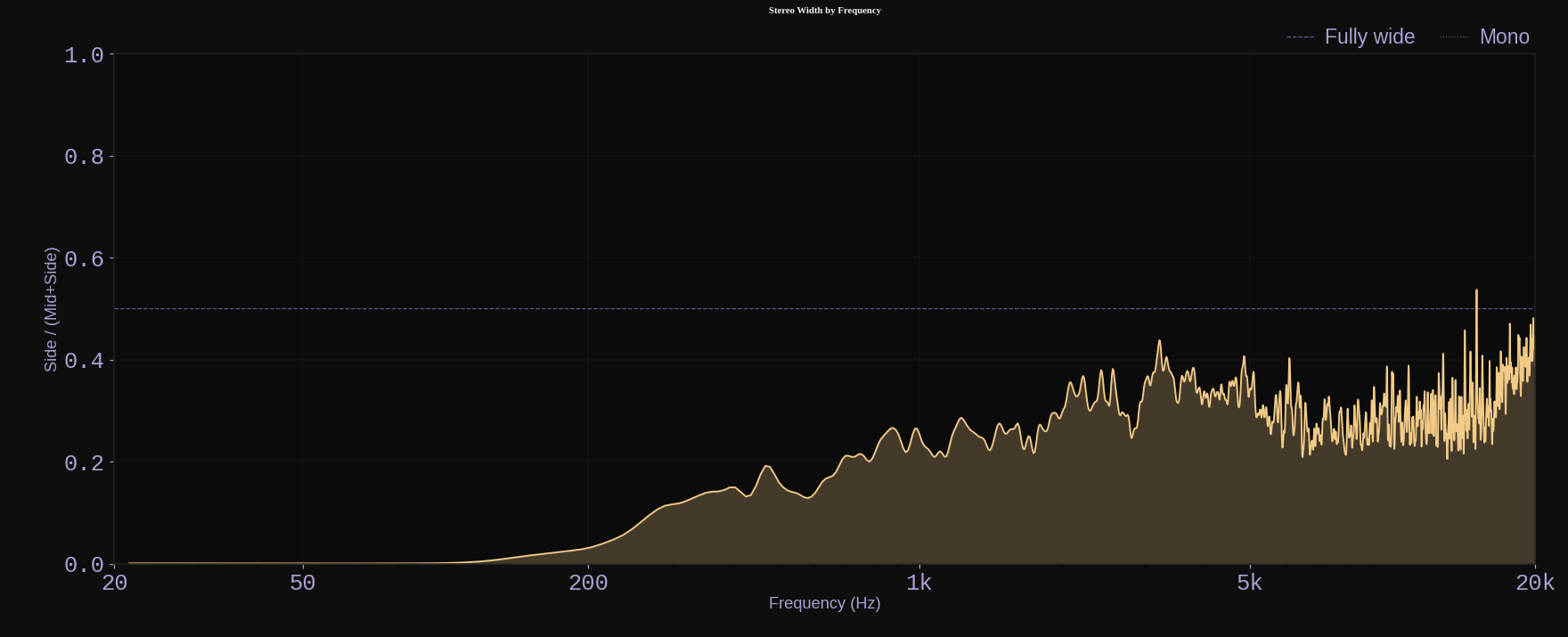
Stereo Width by Frequency. How wide each part of the spectrum is, from mono at the bottom.
Loudness
Loudness follows ITU-R BS.1770 / EBU R128 and is tested against the EBU's reference signals.
Taylor
Loudness is different than volume. It's more like how smushed and loud your song FEELS. Two songs can peak at the same level and one still sounds way louder.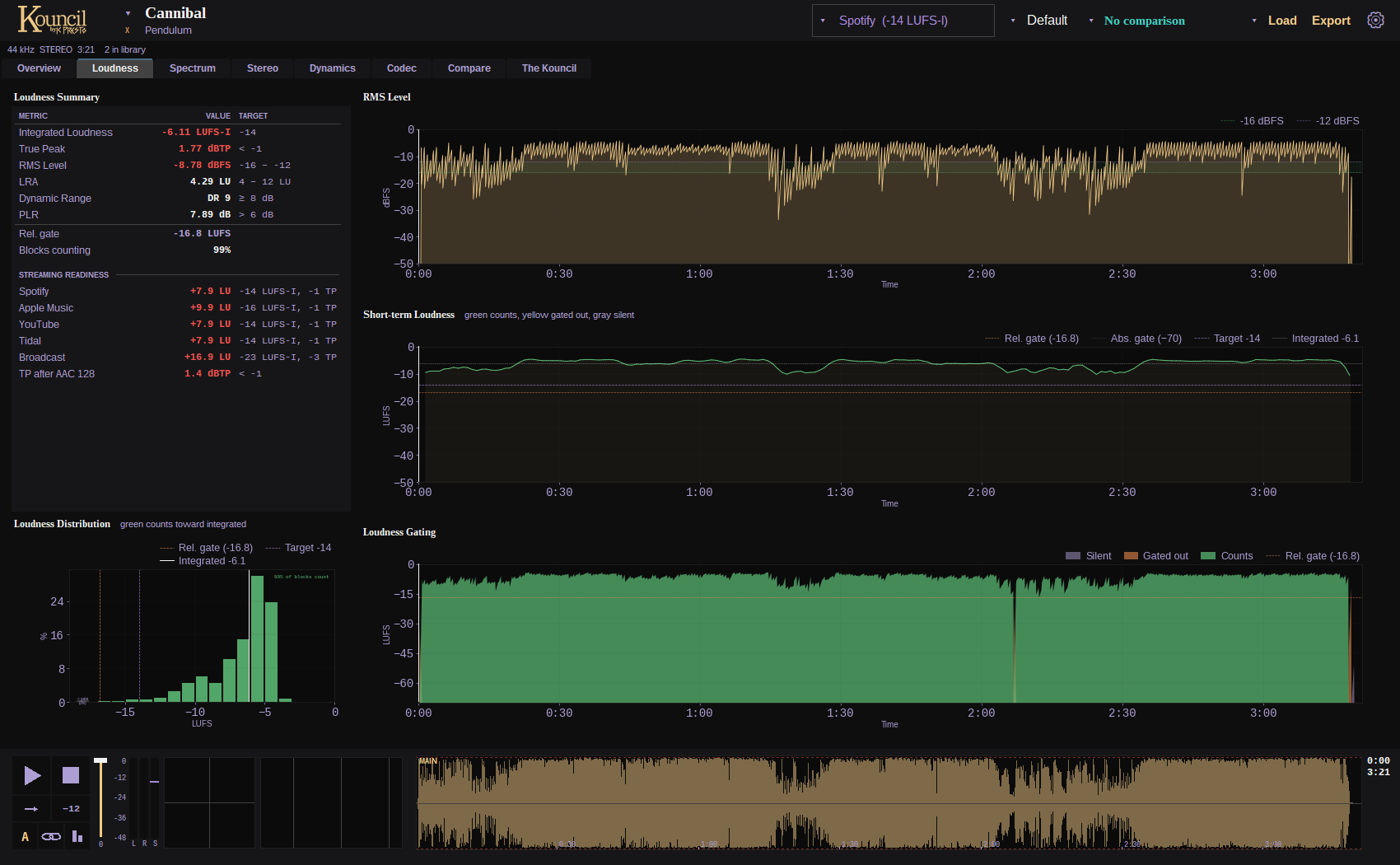
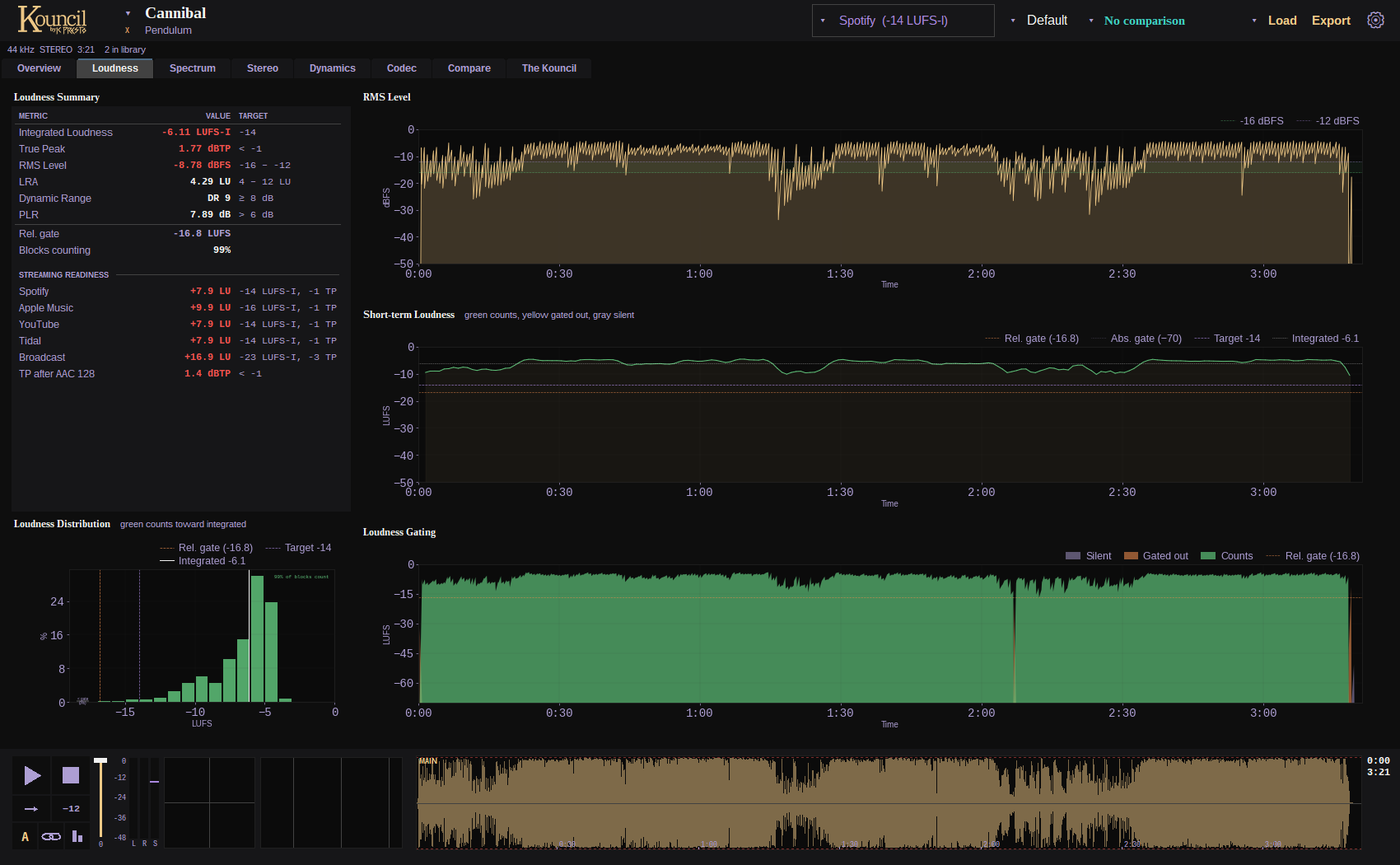
The Loudness tab.
- Loudness Summary. Integrated loudness (LUFS-I: Loudness Units relative to Full Scale, integrated over the whole track), true peak, RMS, loudness range (LRA), PLR, PSR and more, against target.
- Streaming Readiness. One row per platform showing how many LU the track is from that platform's target, which tells you how much each service will turn it down or up.
Vexie Hex
Read Streaming Readiness like this: +4 LU on Spotify means Spotify turns you down 4 dB. You keep the squashed sound and lose the loudness you squashed it for. That's the argument for backing the limiter off.
Loudness Distribution. A histogram of where the track spends its time. Green bars count toward the integrated figure.
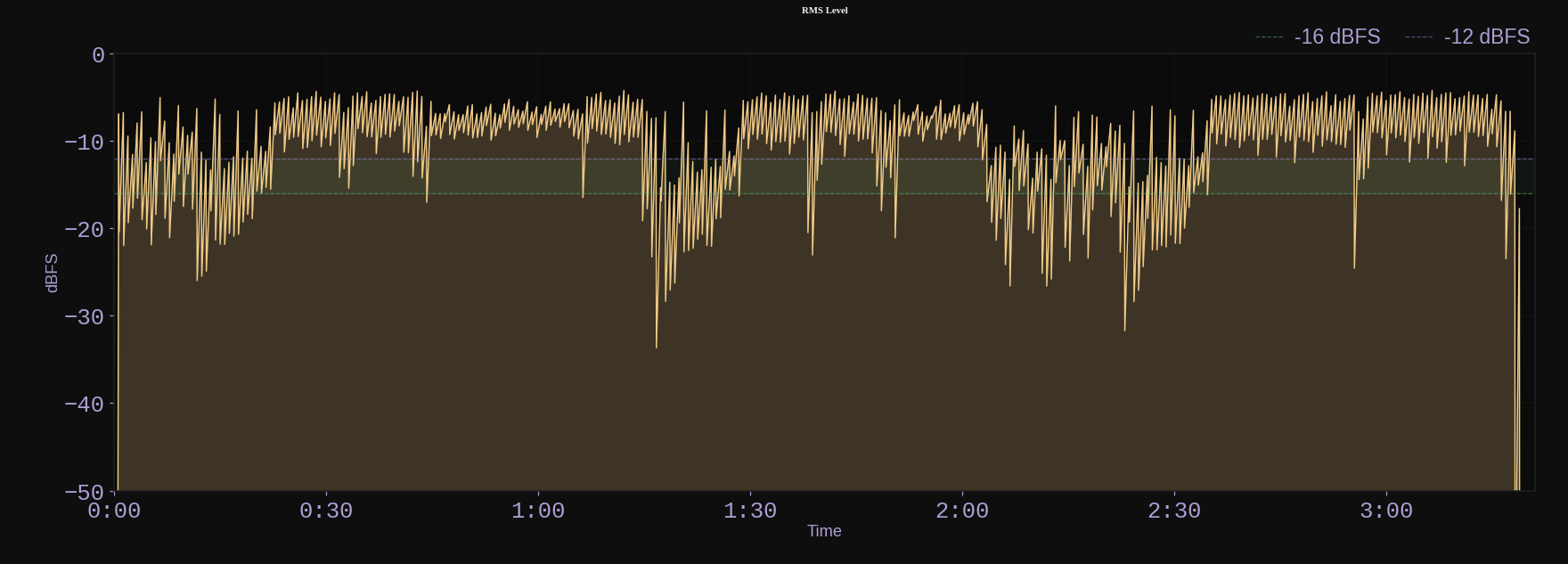
RMS Level over time.
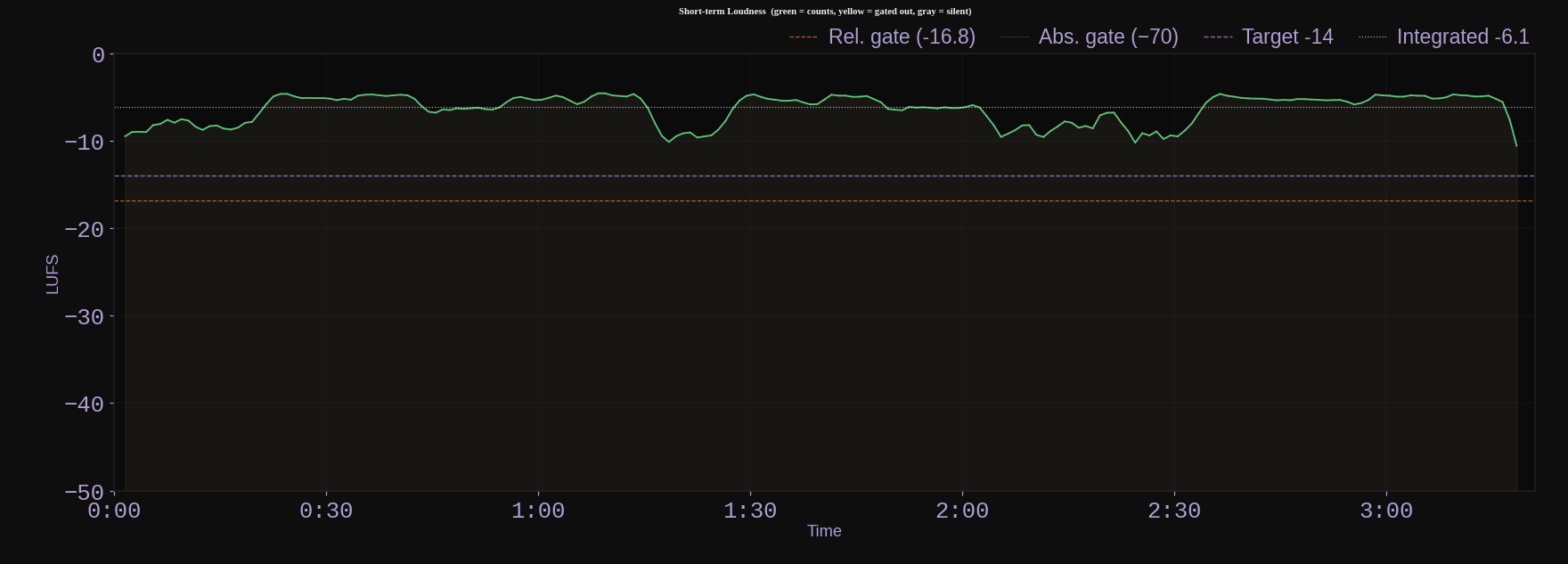
Short-term Loudness over time, with the target, the integrated level and both gates drawn in. Color shows which moments counted and which were gated out.
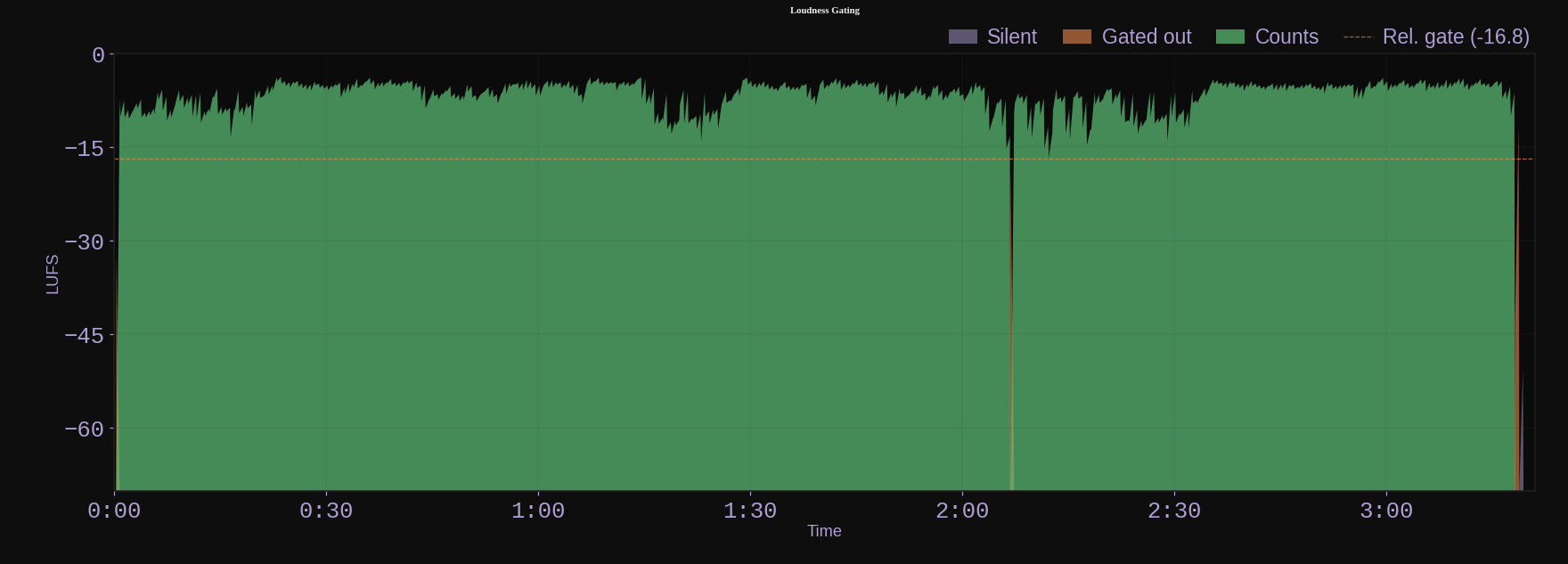
Loudness Gating. Exactly which blocks the BS.1770 gate kept.
Level figures are always the delivered file's own. A -1 dBTP master reads -1 dBTP whatever level-matching is switched on for the spectra.
Spectrum
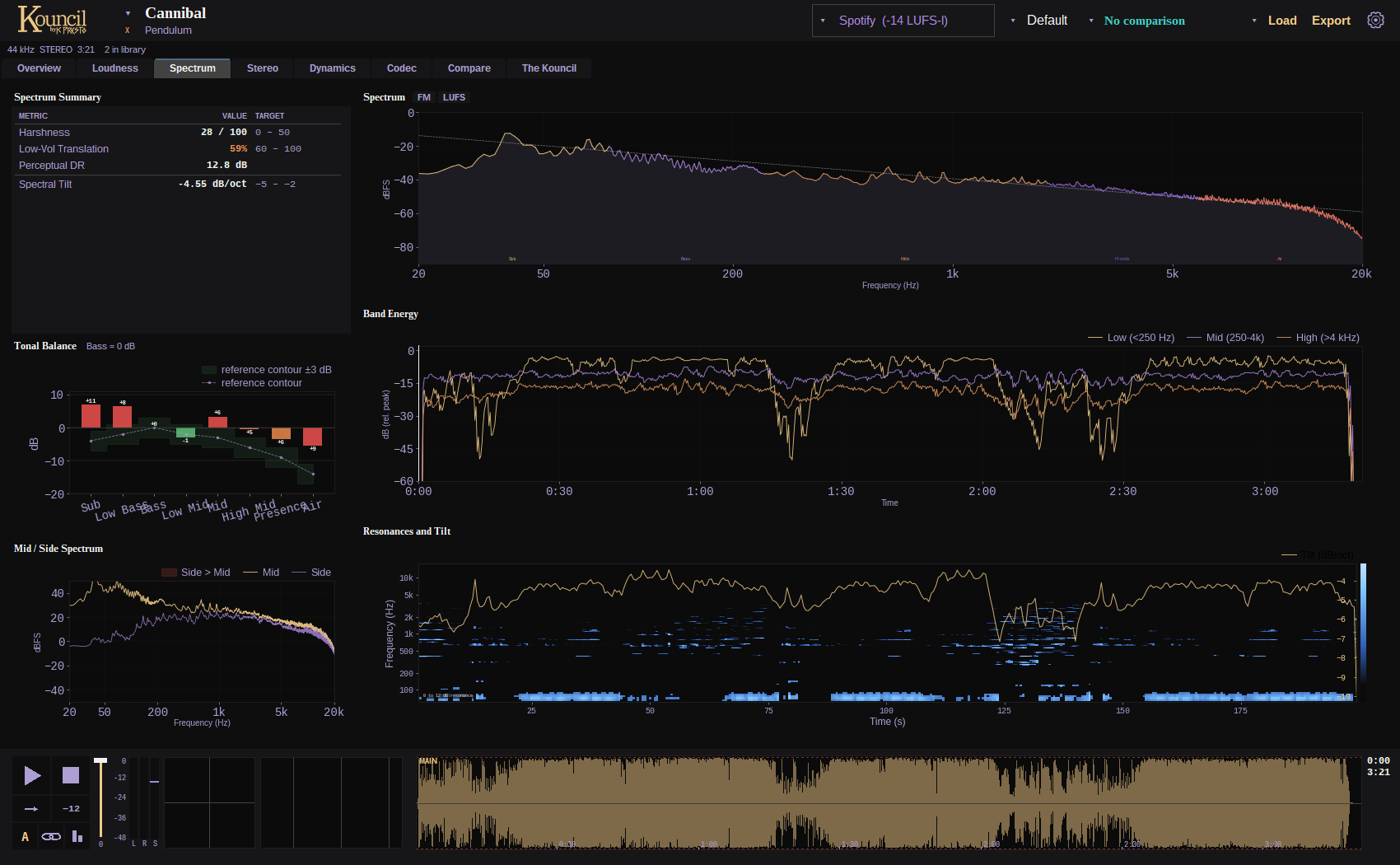
The Spectrum tab.
- Spectrum Summary. How the track sounds (harshness, low-volume translation, perceptual dynamic range) and the spectrum's shape (tilt, resonances). The perceptual figures are weighted by equal-loudness contours.
Spectrum. The average spectrum with the profile's curve behind it. Two switches beside the heading add an equal-loudness (FM) weighting and a LUFS-weighted view. Below about 200 Hz the curve comes from a much longer FFT (a bin every 1.35 Hz), so individual bass notes resolve.
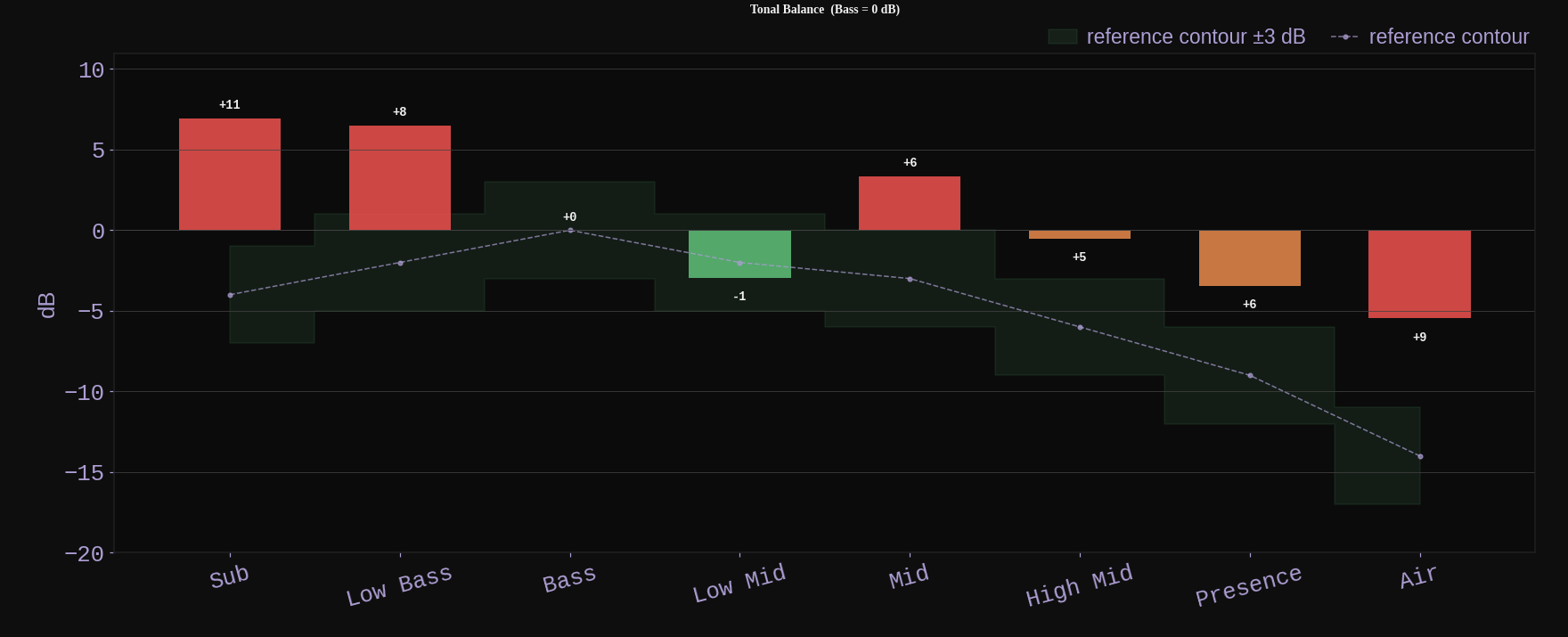
Tonal Balance. Energy per band against the profile.
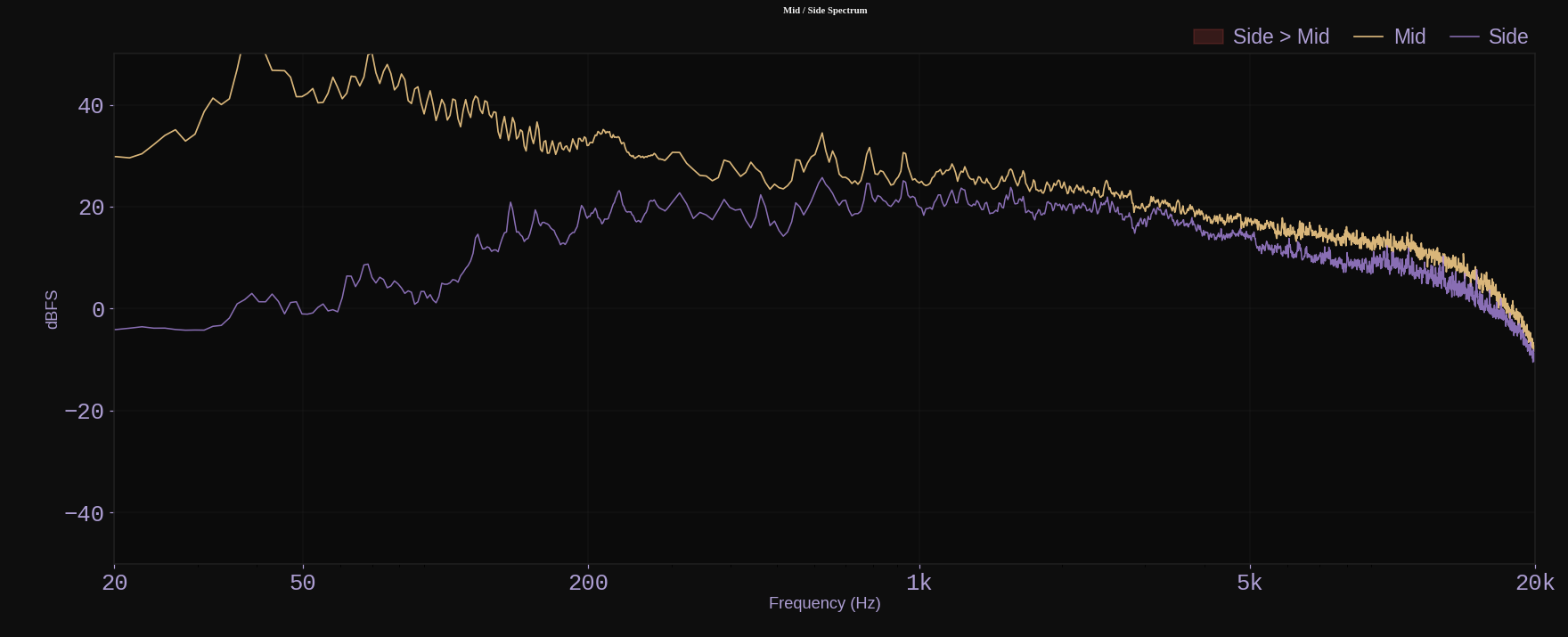
Mid / Side Spectrum. What sits in the center and what sits at the sides.
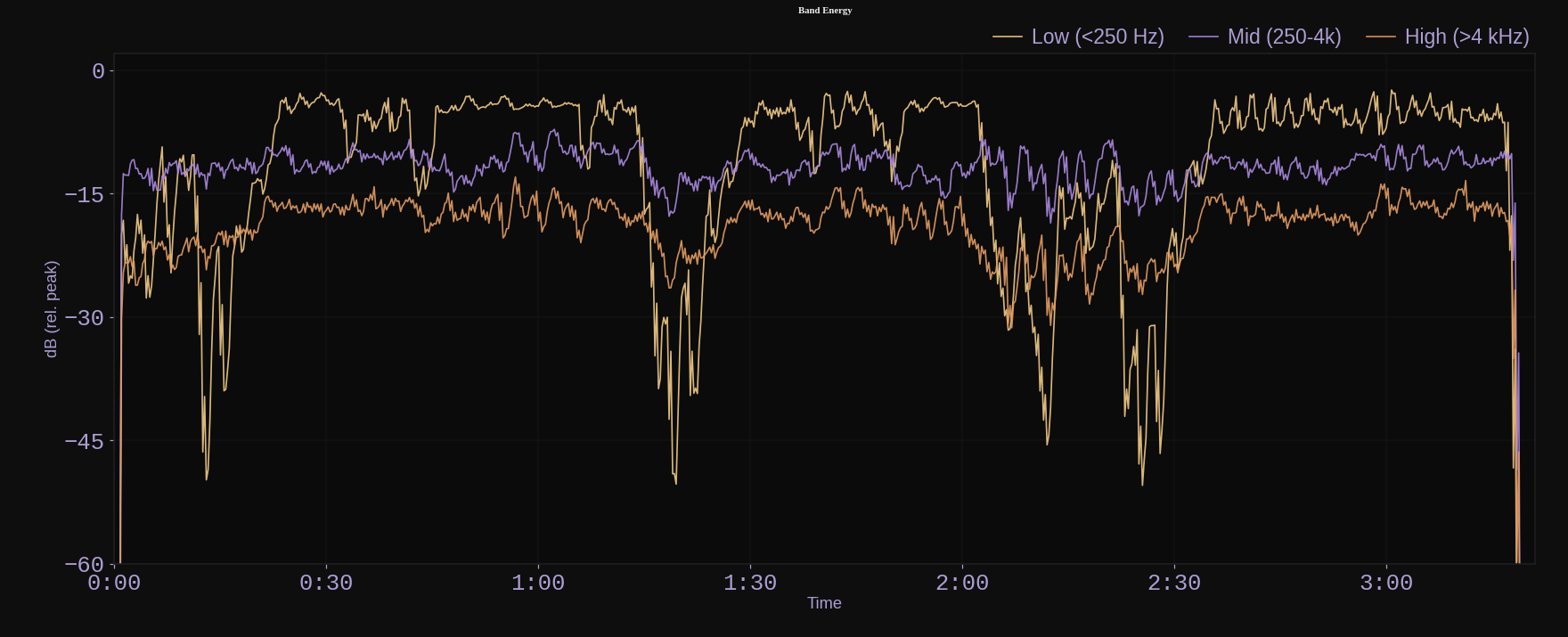
Band Energy. Low, mid and high over time.
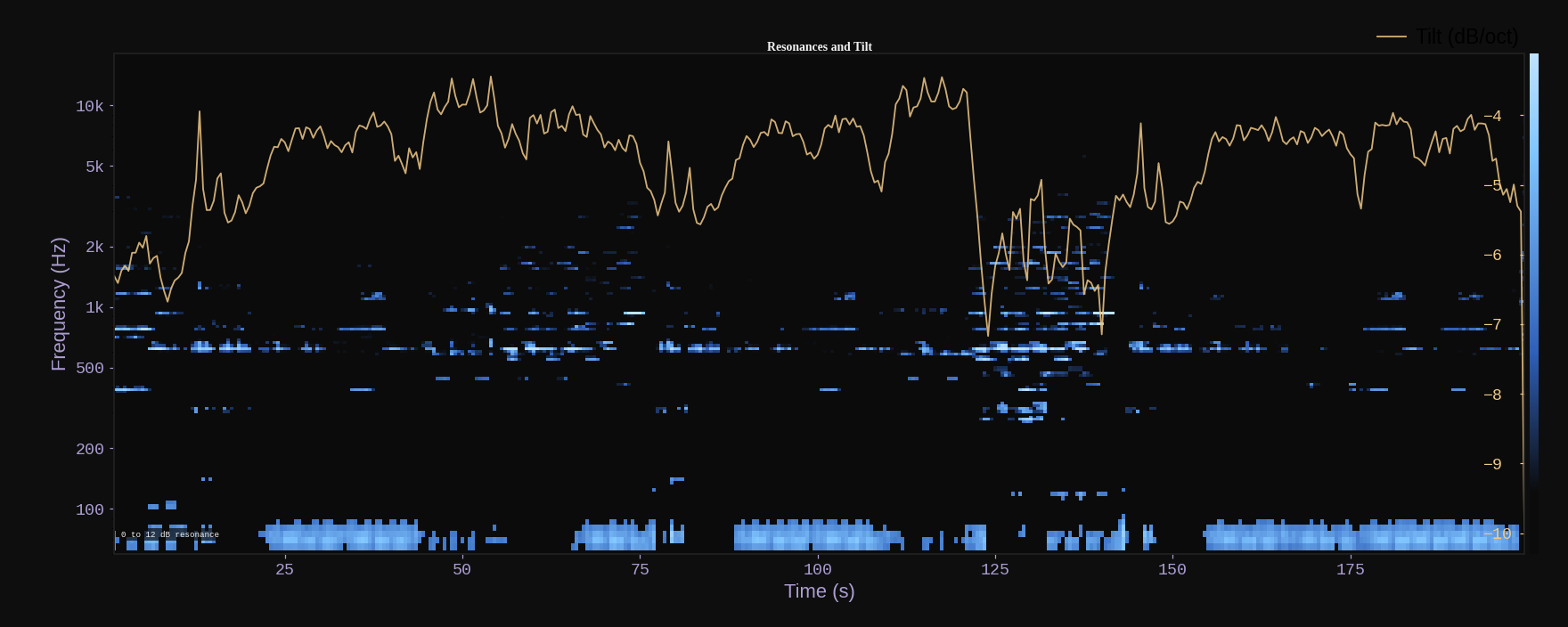
Resonances and Tilt. Where narrow resonances appear over the track, with the spectral tilt traced on top.
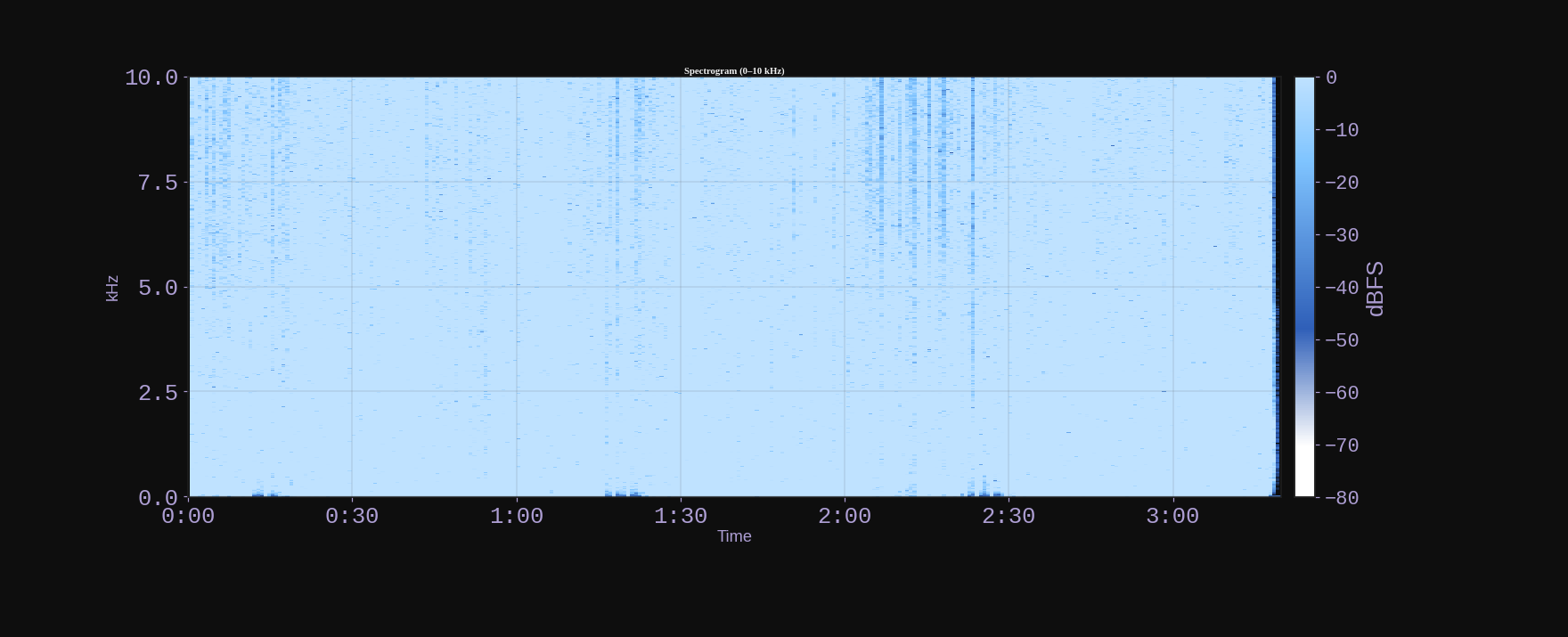
Spectrogram. Frequency against time, available in exports.
Taylor
The spectrum is the bass-to-treble picture of your song. Left side is rumble, right side is sparkle. If it leans hard one way, the song sounds boomy or thin.
Kate Adagio
Tilt is the slope of the whole curve in dB per octave: steeper than the profile reads dark, flatter reads bright. Harshness is energy between 2 and 5 kHz weighted for the ear. When it's flagged, try a broad cut of a dB or so at the peak it names before reaching for anything narrow.Stereo
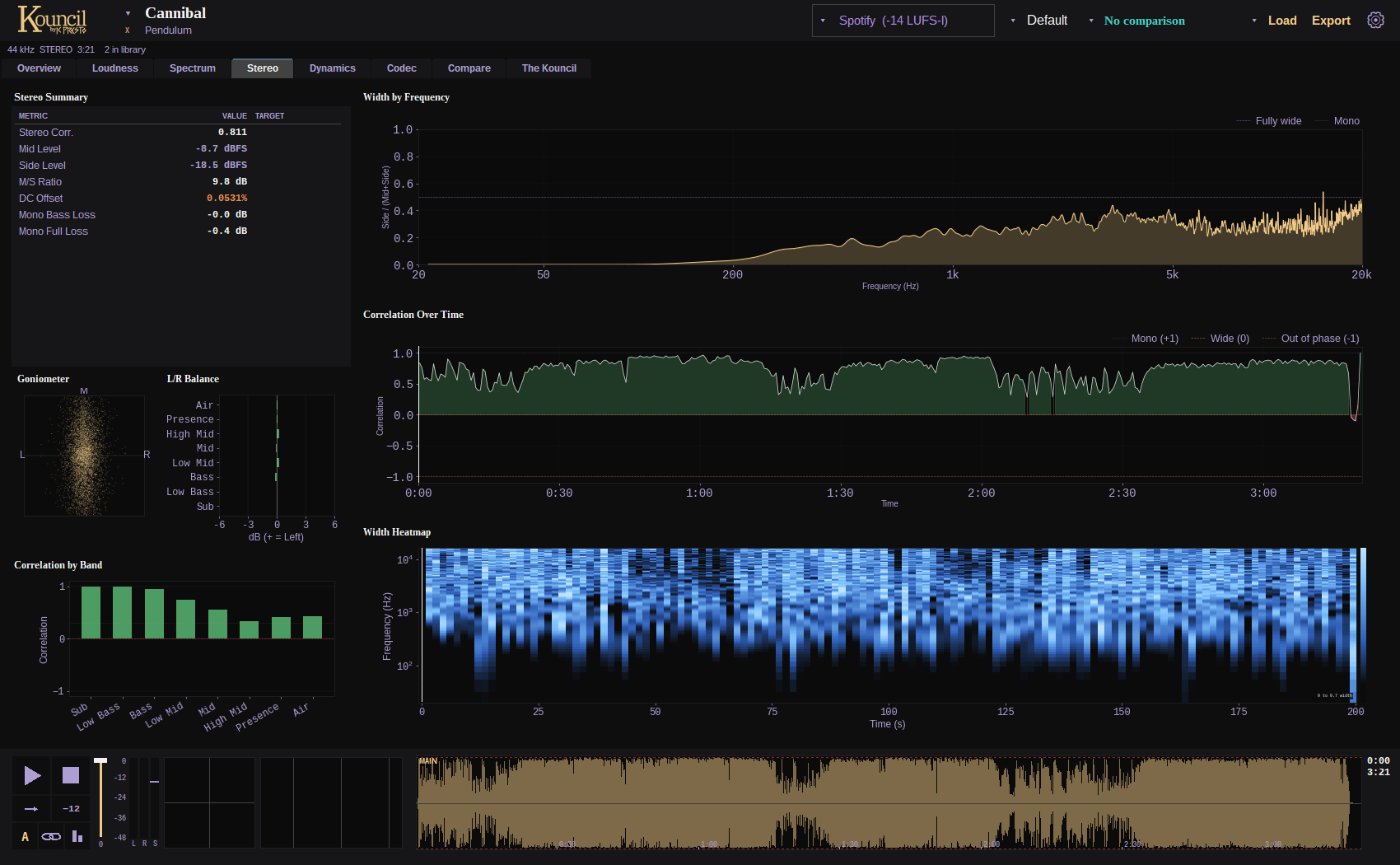
The Stereo tab.
- Stereo Summary. Correlation, width, mono-bass loss, mid/side balance.
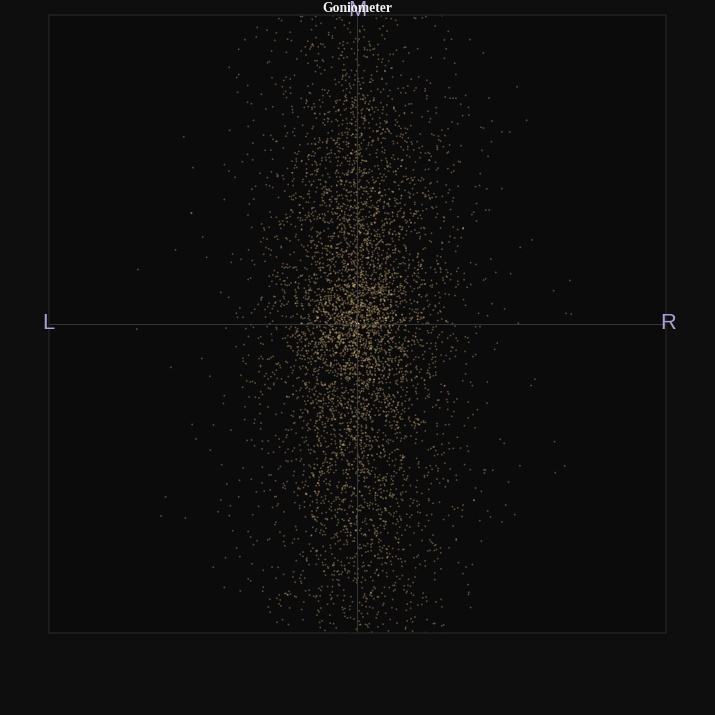
Goniometer. The classic vectorscope of the whole track: mono is the upright line, width spreads sideways.
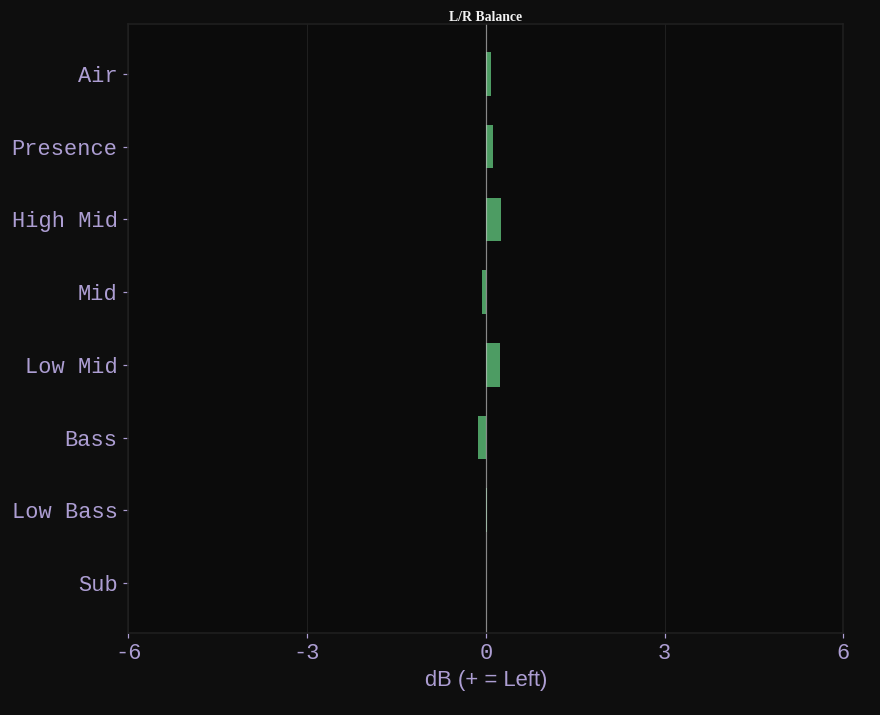
L/R Balance by band, on a fixed 6 dB scale so a 0.1 dB lean doesn't look like a hard pan.
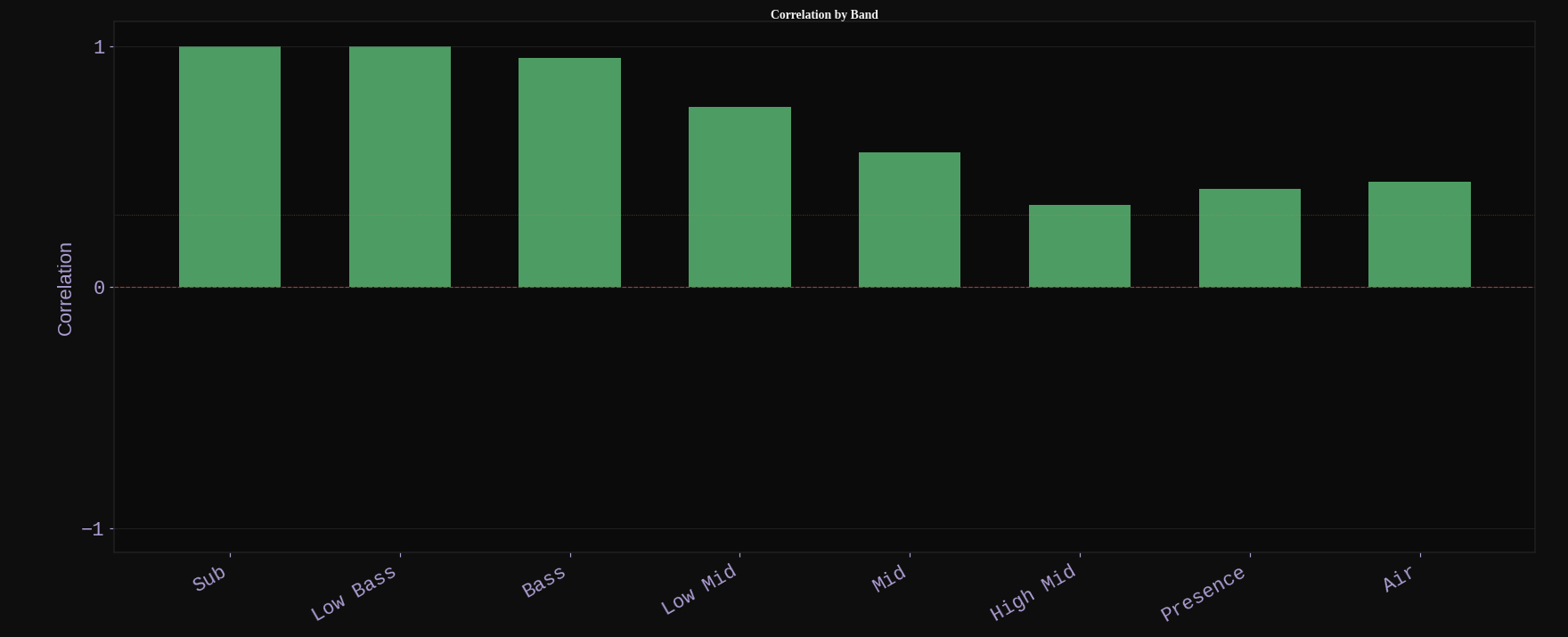
Correlation by Band. Phase correlation per band, which is where mono problems hide.
Width by Frequency.
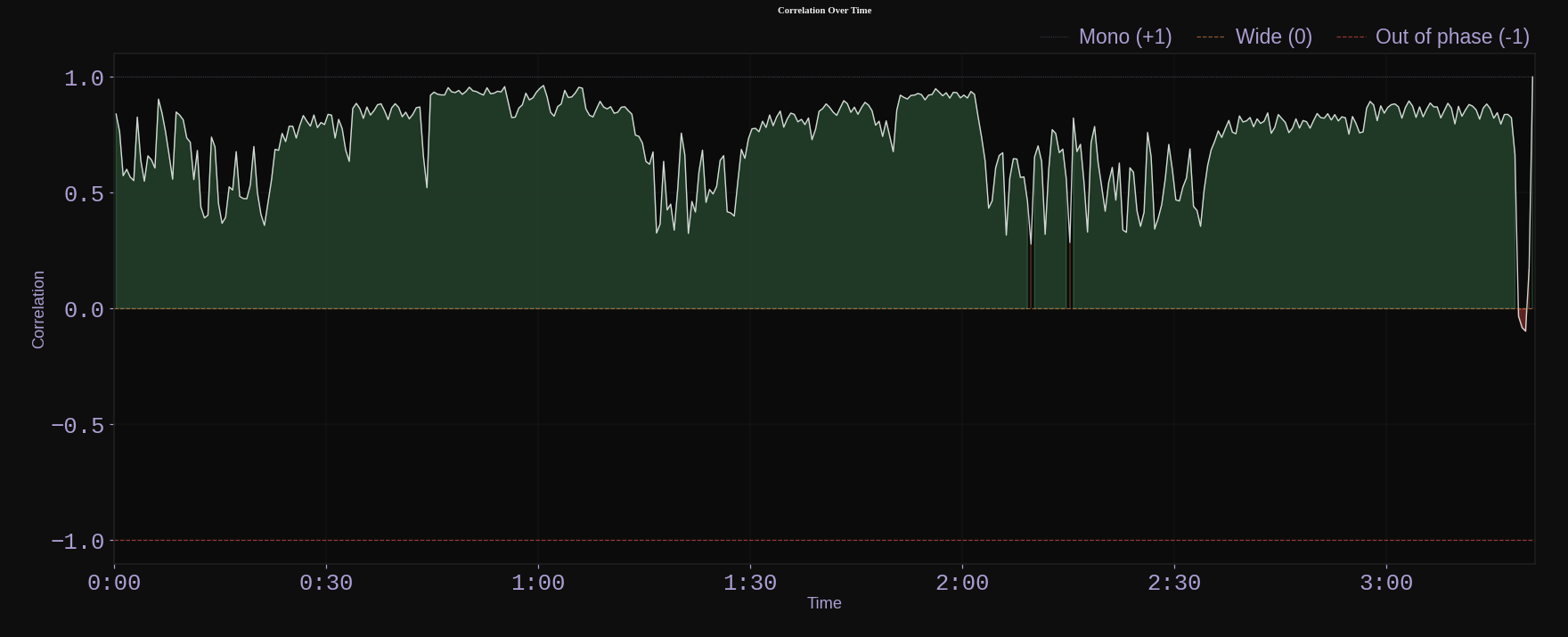
Correlation Over Time. Dips towards zero and below are the moments that suffer in mono.
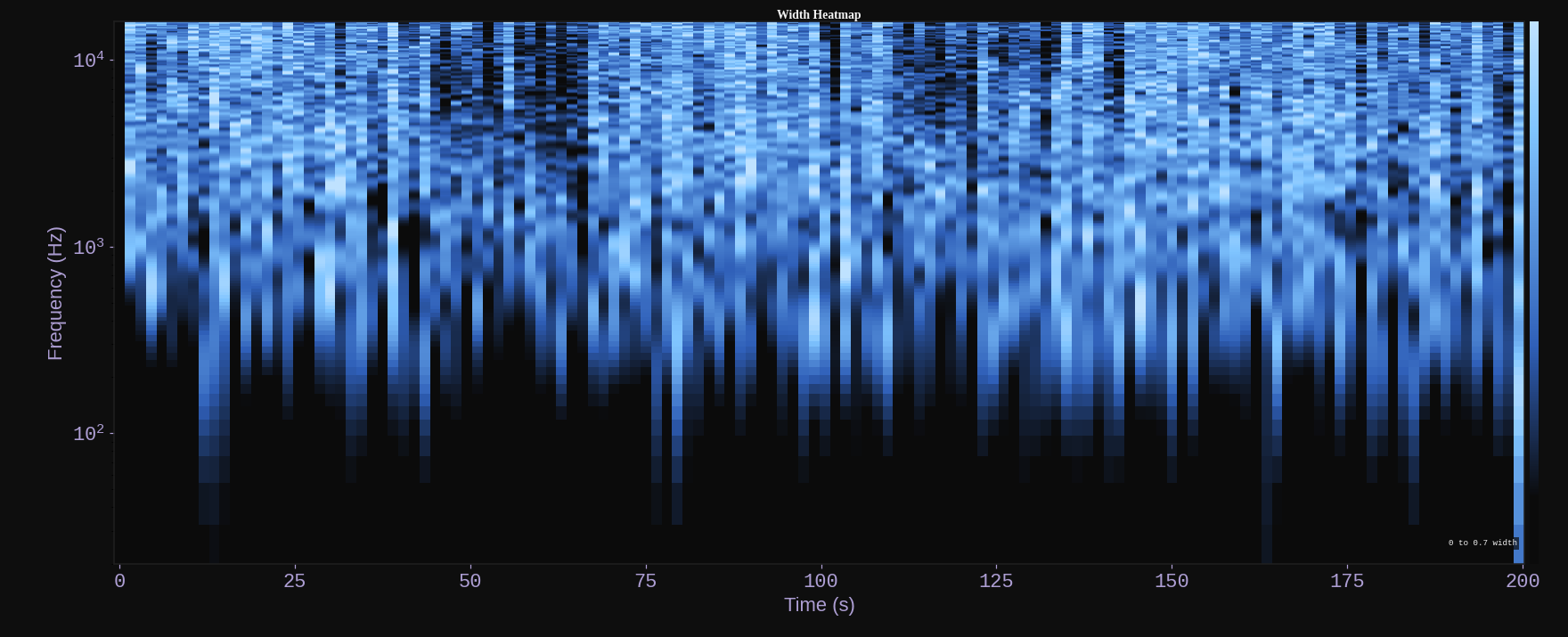
Width Heatmap. Width across frequency and time together.
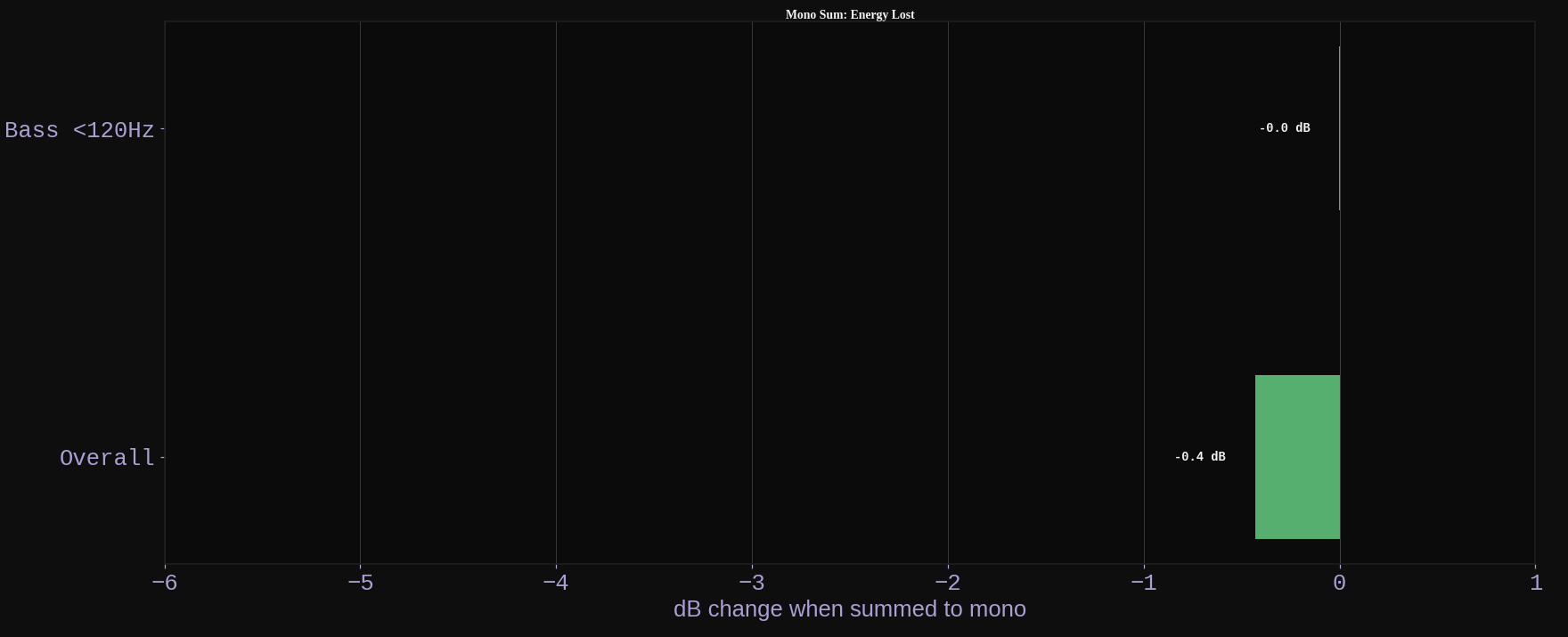
Mono Compatibility. How much level the bass and the whole mix lose when summed to mono.
Taylor
A phone speaker, a shop ceiling, a club system: lots of places squash left and right into one. Mono problems are the parts of your song that go quiet or vanish when that happens. Usually it's the bass.
Vexie Hex
If Correlation by Band dips below zero in the low bands, something down there is out of phase between left and right, often a stereo widener or a chorus on the bass. Make everything under about 120 Hz mono and check again.Dynamics
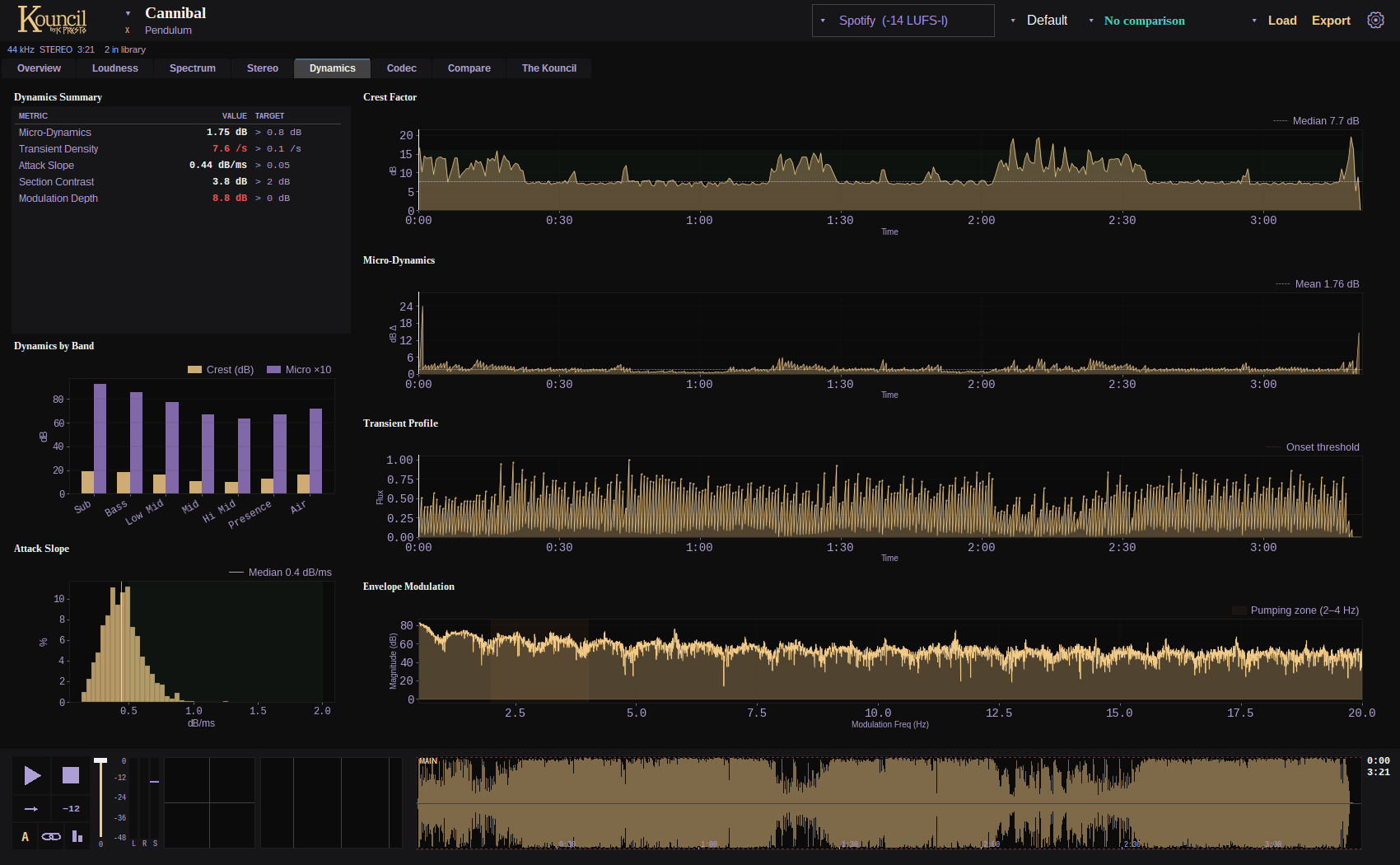
The Dynamics tab.
- Dynamics Summary. DR, crest factor, micro-dynamics, transient density, section contrast.
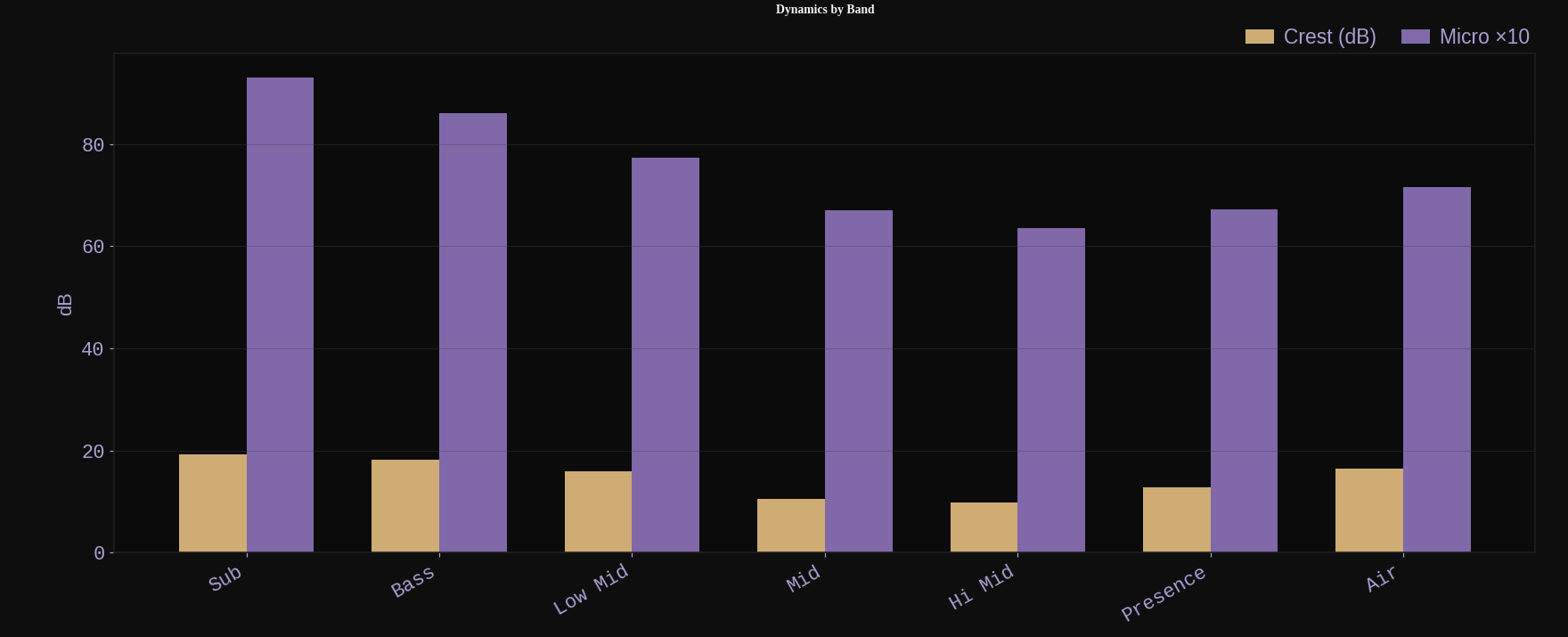
Dynamics by Band. How compressed each band is.
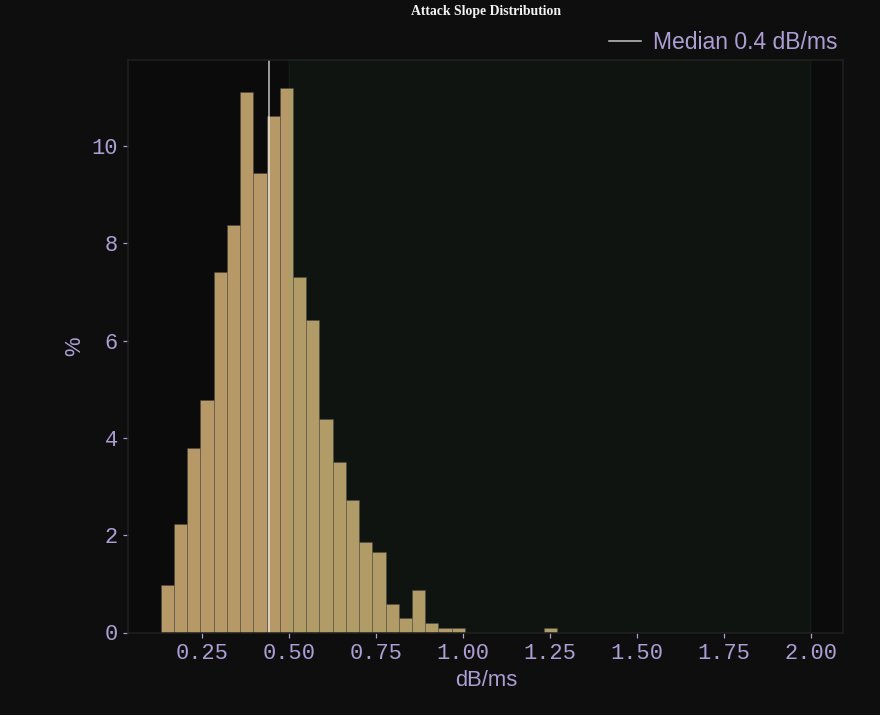
Attack Slope. The distribution of transient attack speeds.
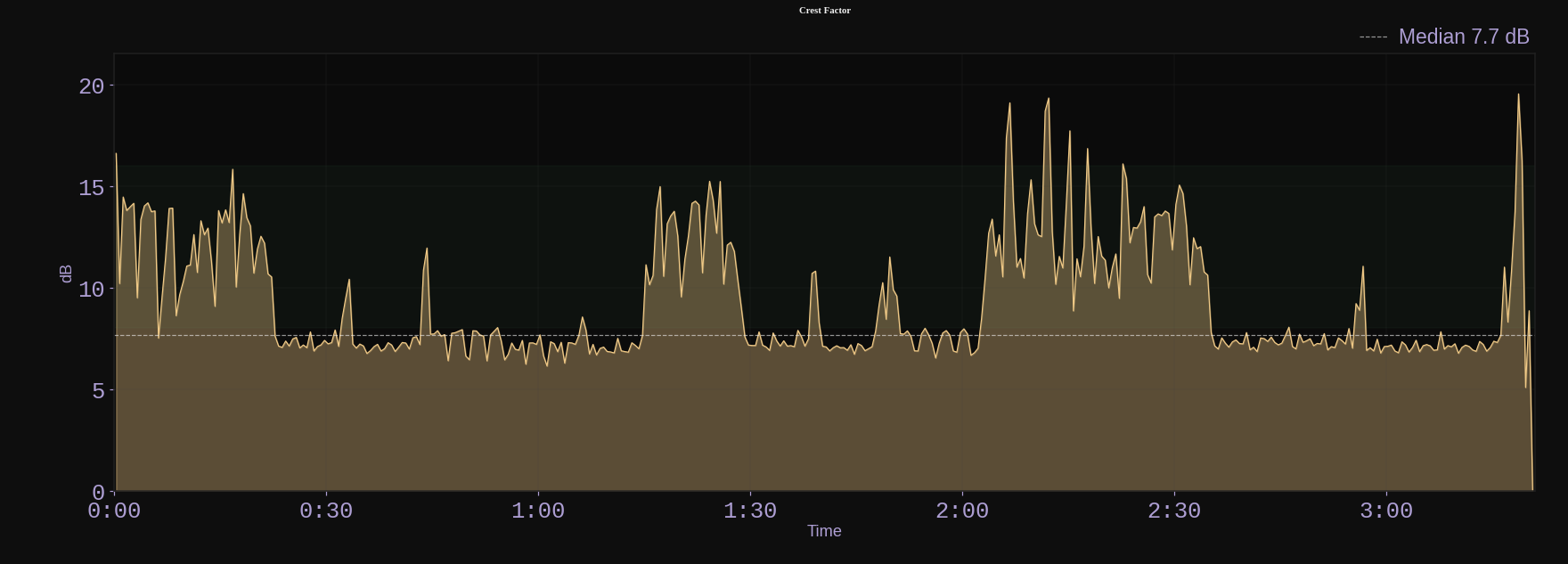
Crest Factor over time, with zones for over-limited, borderline and healthy.
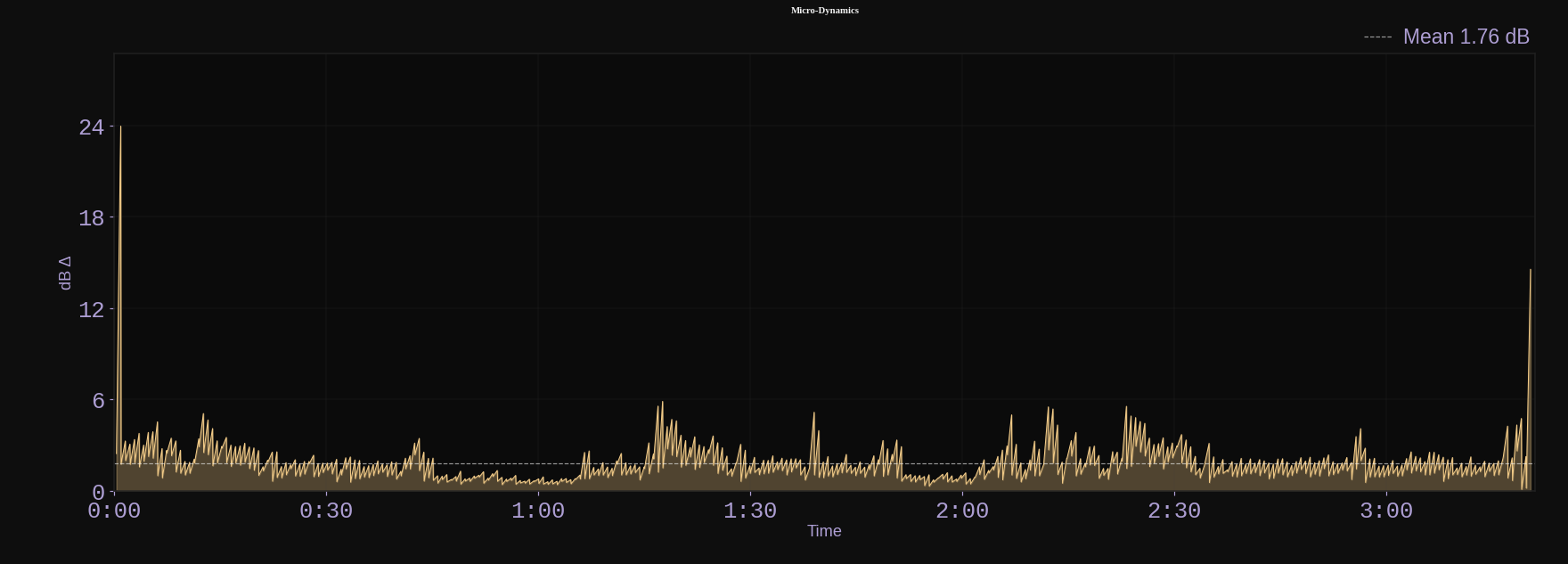
Micro-Dynamics over time.
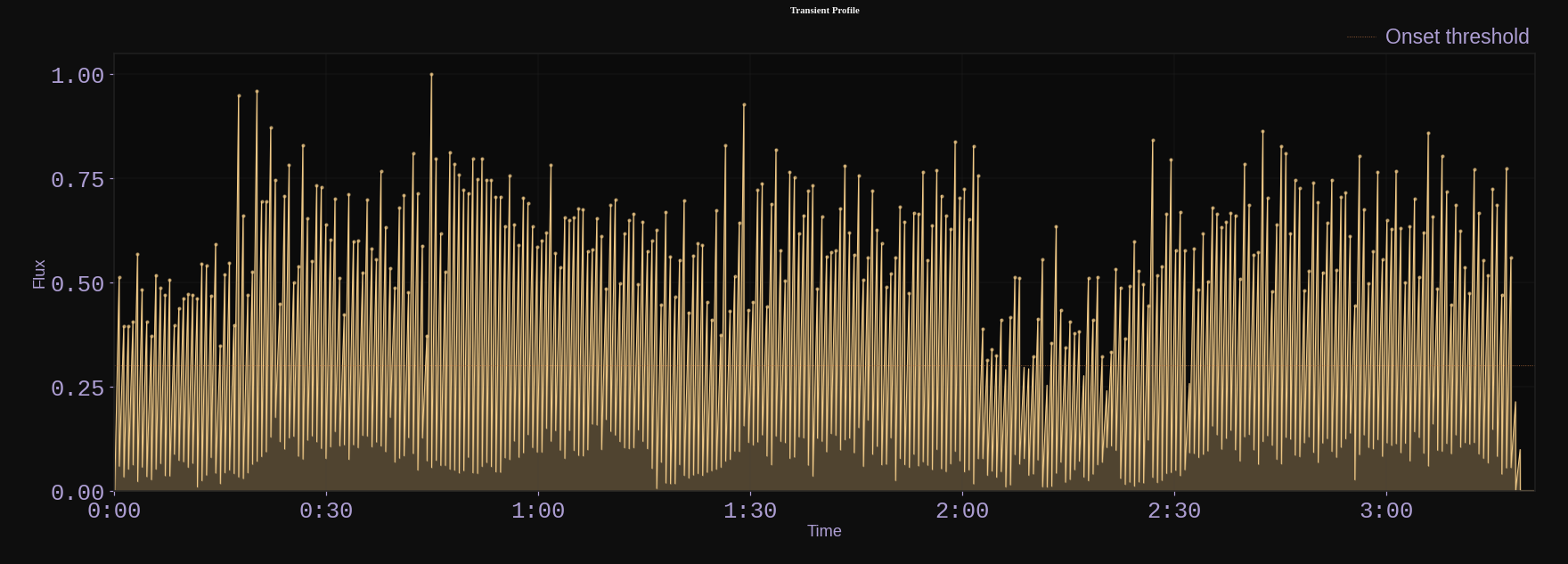
Transient Profile. Each spike is a detected hit.
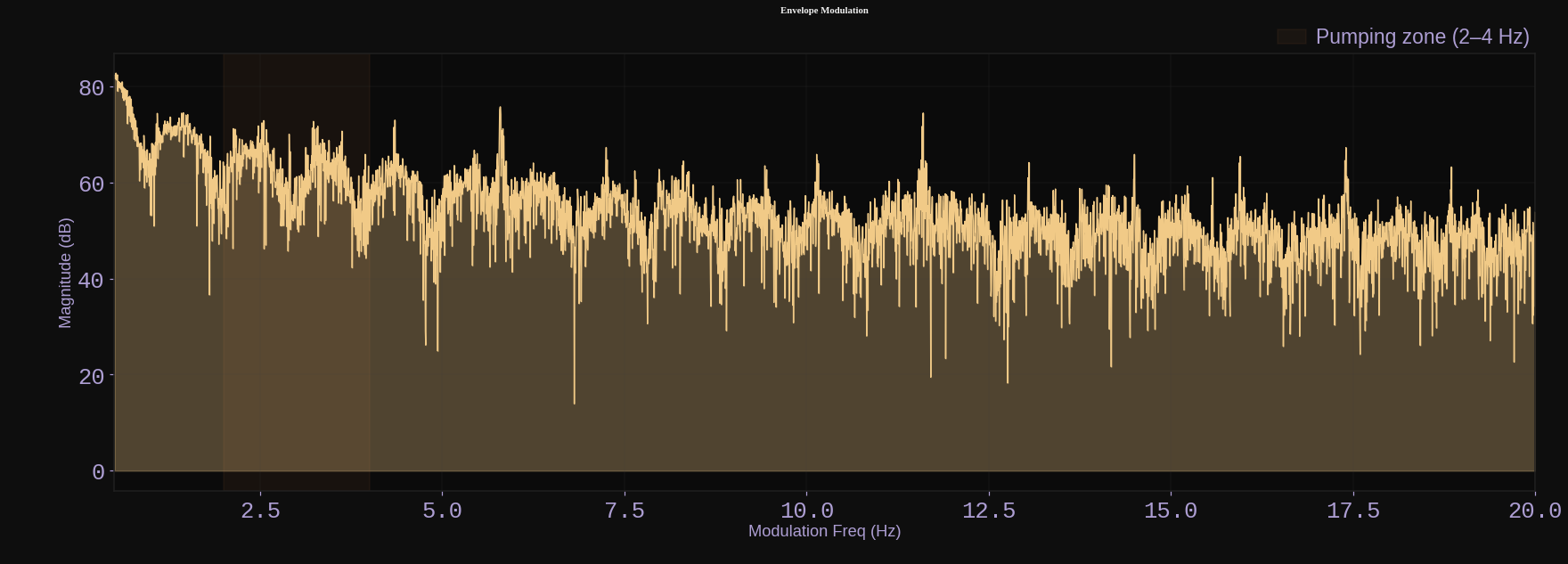
Envelope Modulation. The spectrum of the level envelope, which is where compressor pumping shows up as a peak.
Vexie Hex
Crest factor is how far your hits stand above the body of the sound. Under about 6 dB the limiter has flattened the drums and everything feels the same size. Pull the limiter's input back 2 or 3 dB and the punch comes back.
Taylor
Pumping is when the whole song ducks every time the kick hits, like someone riding the volume knob. Sometimes it's the vibe. Sometimes it's an accident.Codec
Kouncil does not estimate what a codec will do. It encodes and decodes the track through the real codecs with ffmpeg, aligns the result to the original to the sample, and analyzes the difference.
Taylor
Streaming apps and Bluetooth headphones shrink your song to send it. This tab actually does the shrinking and shows you what got lost on the way.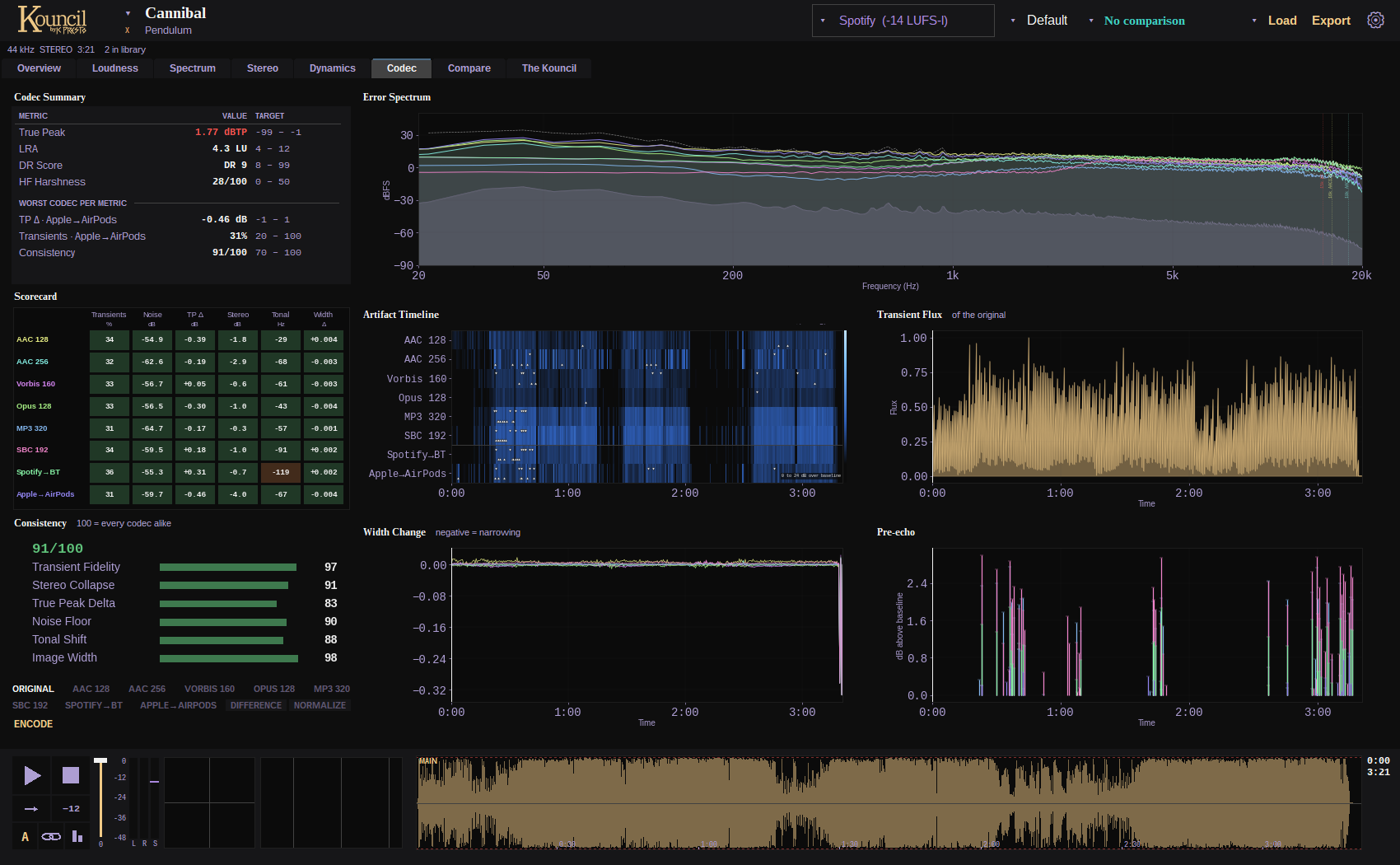
The Codec tab: tables at the left, graphs at the right, Listen under the tables.
| Version | Stands for |
|---|---|
| AAC 128 | Web players, ad-supported tiers |
| AAC 256 | Apple Music, Spotify Premium, YouTube Music |
| Vorbis 160 | Spotify's apps at normal quality |
| Opus 128 | YouTube, Discord |
| MP3 320 | SoundCloud, DJ USB sticks, download promos |
| SBC 192 | Baseline Bluetooth, which every device supports |
| Vorbis 160 → SBC 192 | Spotify over worst-case Bluetooth |
| AAC 256 → AAC 256 | Apple Music on AirPods |
The left column holds the Codec Summary (risk figures, and the worst codec for each metric), the Scorecard and Consistency. The right column holds the graphs.
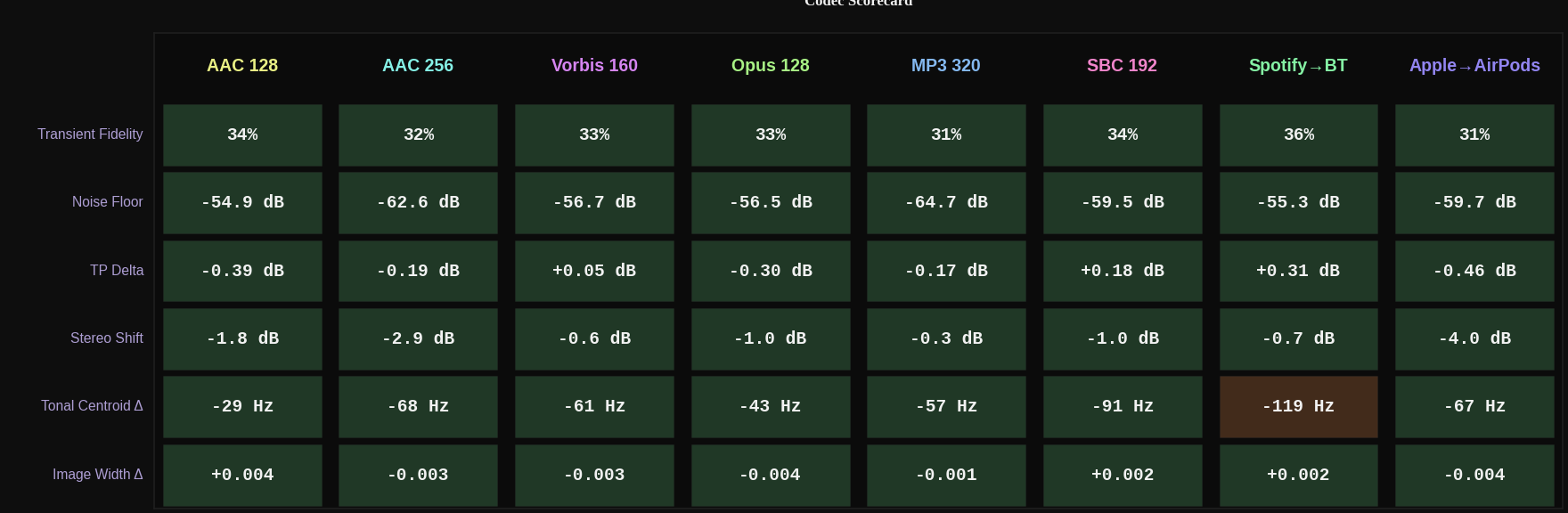
Scorecard. Every codec against every metric, colored by threshold.
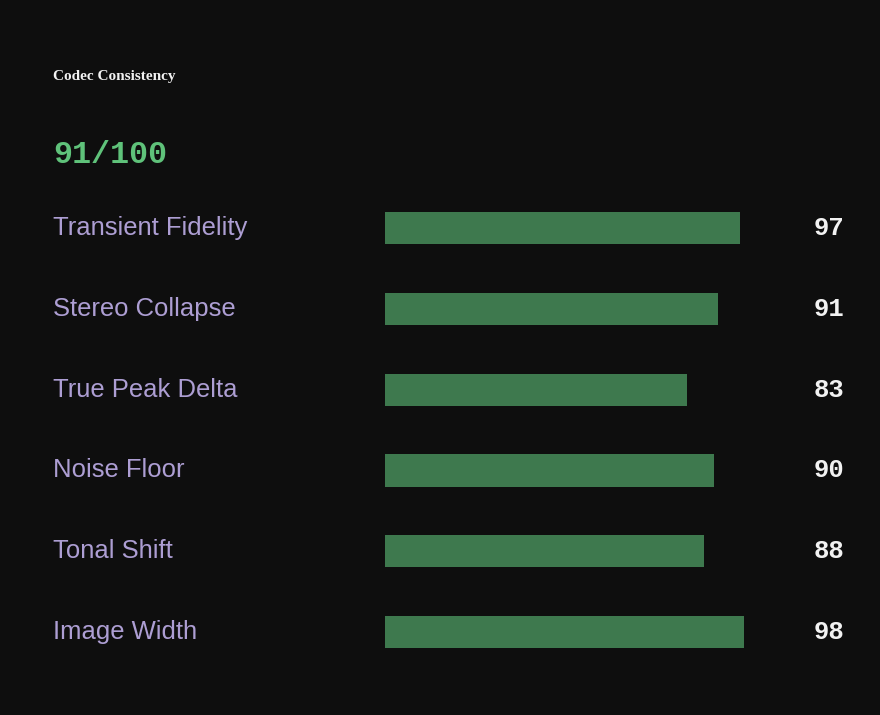
Consistency. How alike the codecs treat the track, counting only things a master can change.
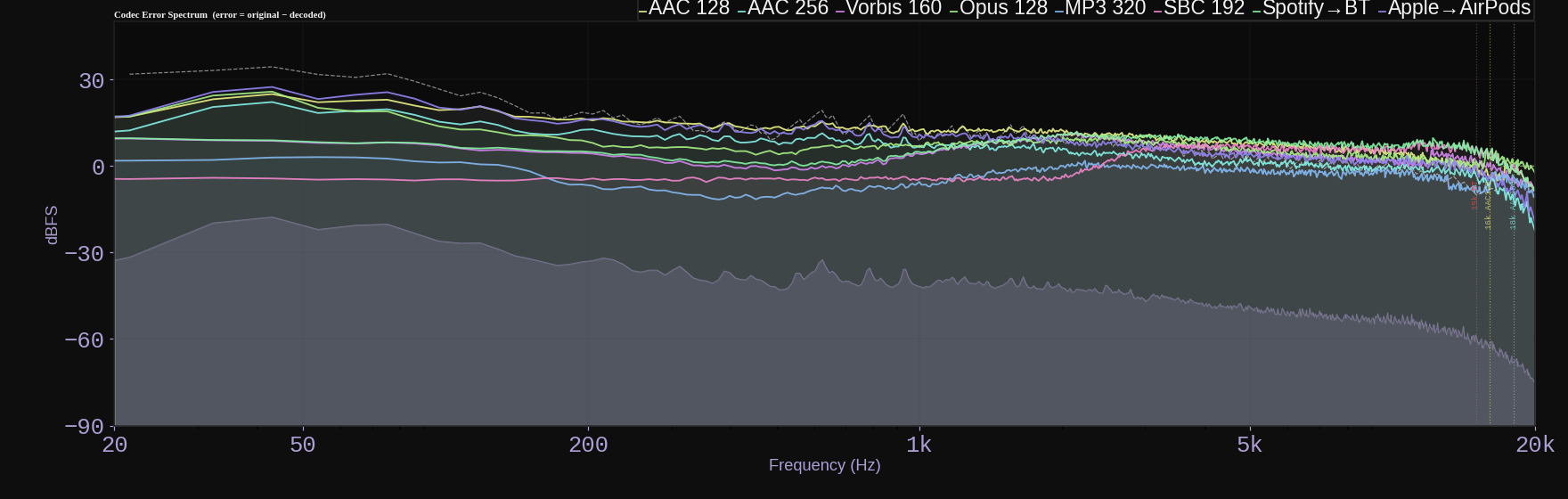
Error Spectrum. What each codec got wrong, by frequency, against a psychoacoustic masking threshold: error under the line is hidden by the music.
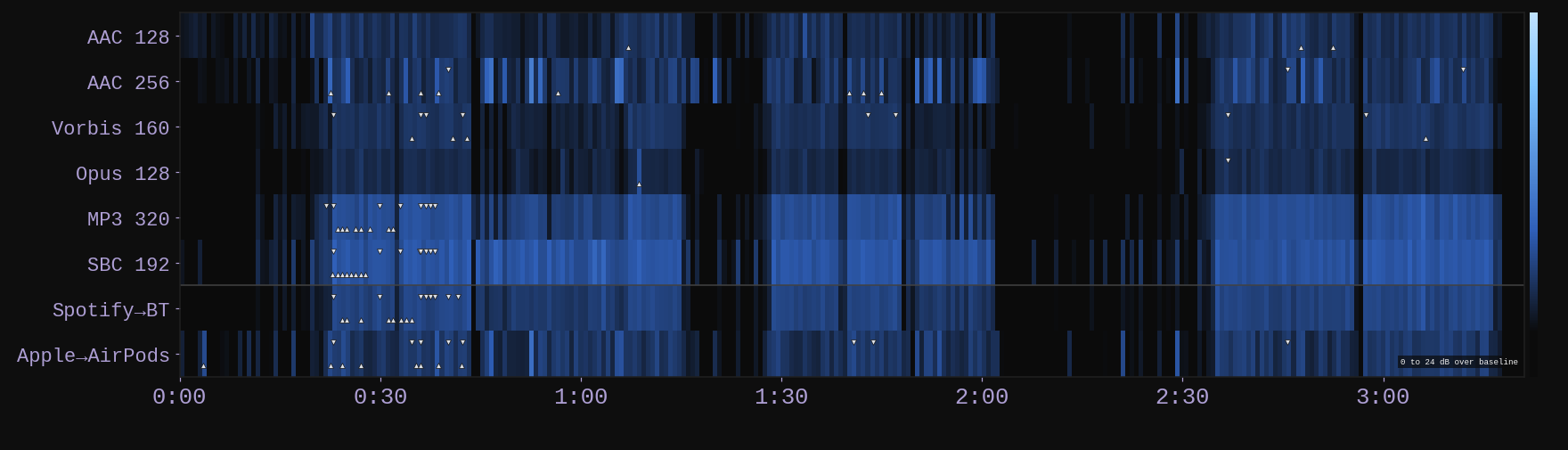
Artifact Timeline. A row per codec; bright cells are moments where its error rose above its own usual level.
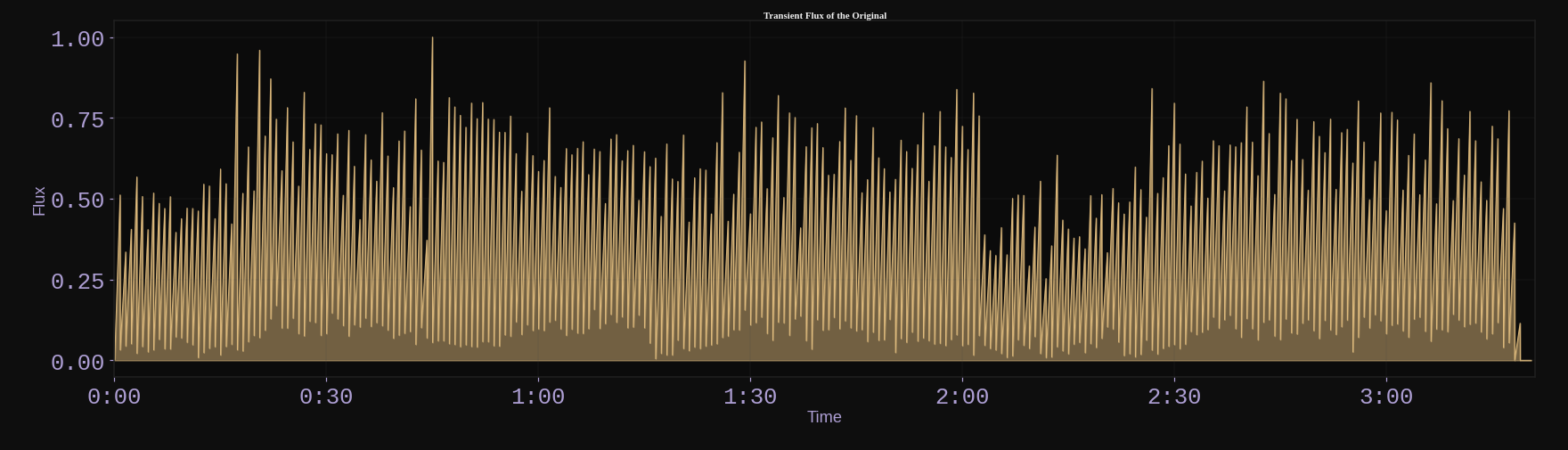
Transient Flux. The original's hits, to line up with the two charts beside it.
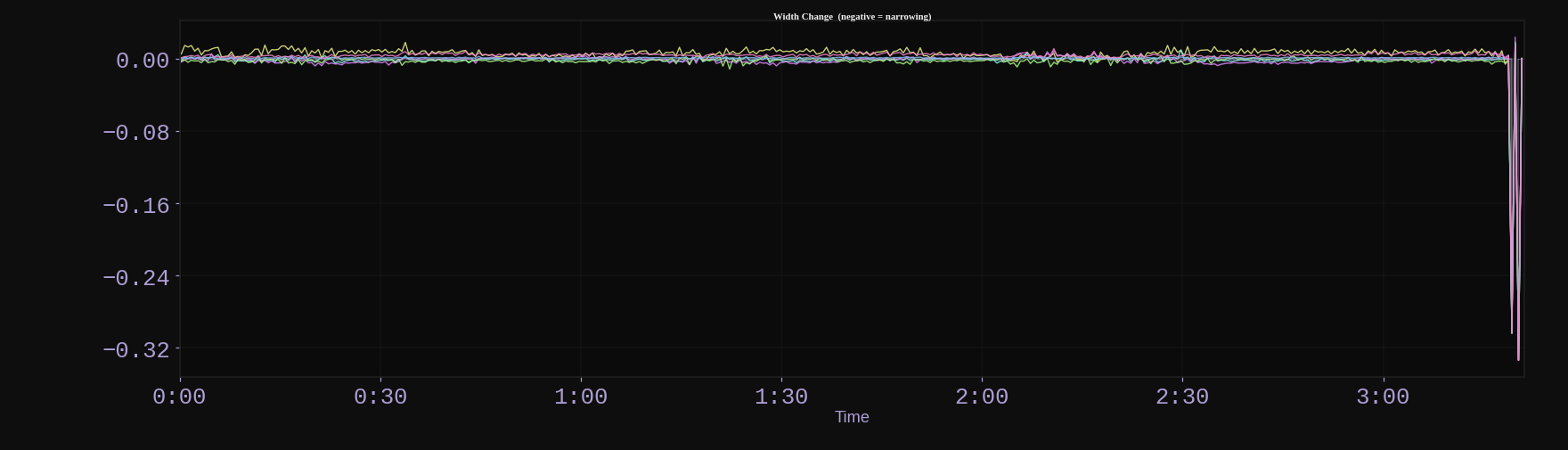
Width Change. How each codec narrowed or widened the stereo image over time.
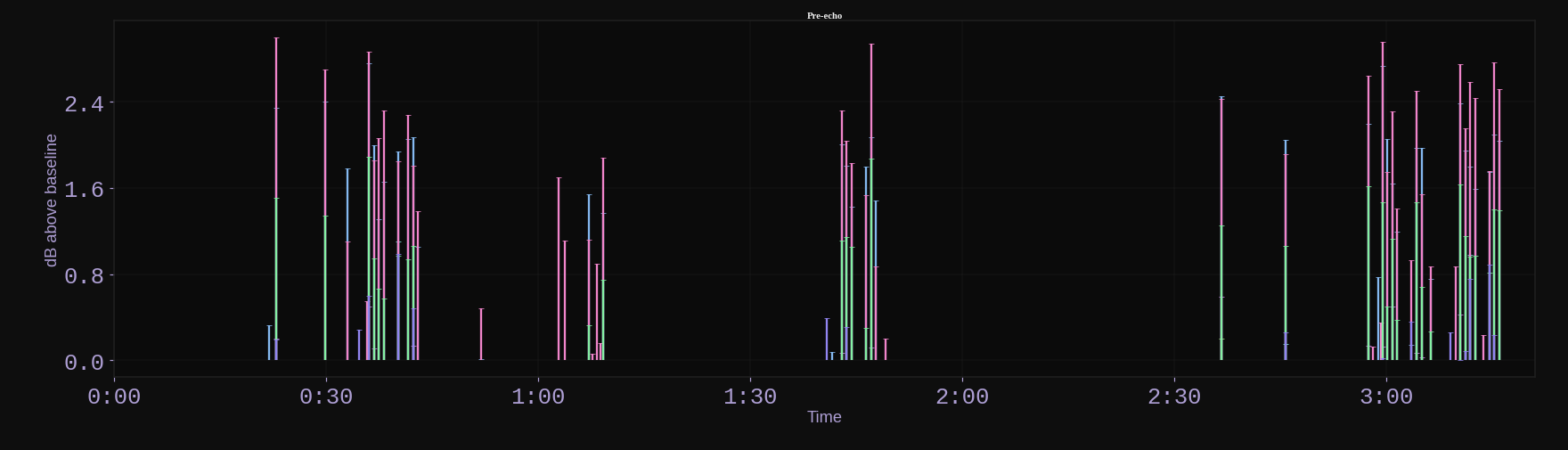
Pre-echo. Where a codec smeared sound ahead of a hit, and by how much.
Each codec has its own color across the whole tab. Tooltips on the Scorecard say what moves each figure and what to do in the master about it.
Kate Adagio
The two figures worth acting on are true peak change and transient fidelity. If a codec adds more than a dB of peak, lower your ceiling by that much. If transients score low, the hits are landing on dense, bright material and the encoder runs out of bits: ease the limiter and tame constant top end such as hats and distortion fizz.Under the tables is Listen, covered in the next section.
Compare
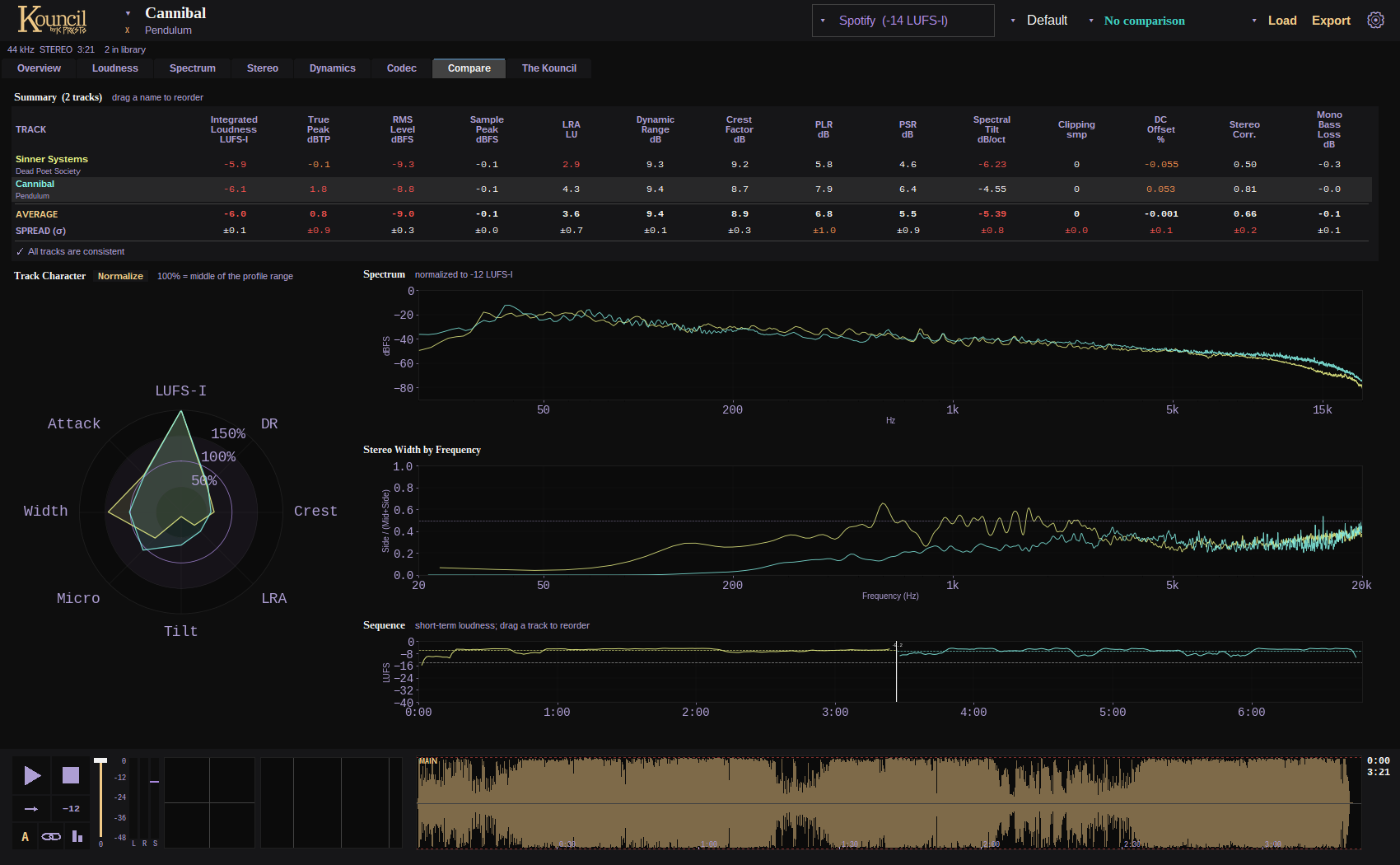
The Compare tab: every track in the library in one table, then on the same charts.
- Summary. One row per track, one column per metric. Track names are in each track's own color and are the color key for the charts beside them. Outliers are marked in the warning colors.
- Track Character. A radar chart of every track. With Normalize on, each axis is scaled to the active profile's range, so a track that sits on the profile draws a circle and deviations stick out as dents and spikes.
- Spectrum. Every track's spectrum overlaid.
- Stereo Width by Frequency, overlaid.
- Sequence. The tracks end to end in album order with the loudness step at each join, which shows whether track 4 will jump out after track 3.
Taylor
On Track Character every song is a shape. Songs with the same shape sound like they belong on the same album. The one with the weird shape is the one that'll stick out.To put an album in order, drag a track by its grip in the header's track list, drag a name up or down in the Summary, or drag a track along the Sequence chart. Click anywhere on Sequence to start playback from that point in that track, which makes auditioning the transitions quick.
Tracks keep their color when the order changes.
5. Playback and listening tools
The strip along the bottom is the track's waveform with a transport on it. It is there on every tab except The Kouncil, and the waveform lines up with the time charts above it, so a moment in the track is at the same horizontal position everywhere. Every time chart carries a moving playhead.

Left to right: the transport, the fader, the output meter, the live goniometer and spectrum, the waveform with its time at the right.
Transport
| Control | Key | What it does |
|---|---|---|
| Play / pause | Space | |
| Stop | Esc | |
| Mode | L | Steps through FULL, RANGE and LOOP |
| A / B | M | Switches between the track and the compare source |
| Sync | Keeps both playheads at the same moment | |
| Level match | Plays both sources at matched loudness, so louder doesn't win | |
| -12 | D | Dims the output by 12 dB |
| Fader | Monitor volume |
Drag on the waveform to mark a range. RANGE plays it once and LOOP repeats it. The range is drawn on every time chart as well. Click or drag on any time chart to move the playhead.
Meters and live pictures
Beside the transport sits an output meter with peak bars for left and right, a held peak mark, and the track's short-term loudness against your streaming target. A CLIP counter appears if the output has reached full scale.
Next to it are a live goniometer and a live spectrum of what is playing, drawn as a line over the same 20 Hz to 20 kHz axis as the app's other spectra. Each waveform's time, position over length, is in the margin at its right.
These read the audio before the fader and the dim switch, so they show the master, not your monitoring level.

With a compare track the strip has two waveforms on one time scale, and A / B switches which one plays.
Audition a frequency band
Drag here: left and right picks the band, up and down its width.
Drag on any spectrum chart to hear only the band under the pointer. Moving left and right moves the band, moving up and down changes its width. Release to return to the full mix. This turns "there's a bump around 300 Hz" into something you can hear in two seconds.
Hold a bar on a band chart (Tonal Balance, L/R Balance, Correlation by Band, Dynamics by Band) to hear that band alone.
The filter glides between positions without clicks, and a look-ahead limiter catches the cases where one band of a limited master peaks higher than the whole.
Vexie Hex
Use it like a solo button for frequencies. Something sounds honky? Drag across the mids until the honk gets loud, read the number, and that's where your EQ cut goes.Hear the codecs
On the Codec tab, the Listen row plays the track as a codec or chain delivers it, in place of the original. Click a codec's name to switch. Playback position, range and loop carry over and the switch is instant.
- C flips between the original and the last codec you heard.
- DIFFERENCE plays only what the codec removed or added.
- NORMALIZE brings that difference up to full level so the artifacts are easy to hear.
Taylor
DIFFERENCE is the strangest button in the app. It plays only the bits of your song the codec threw away. It sounds like a ghost of the cymbals.How eagerly the codec versions are prepared, and how much memory and disk that may take, is one choice in Settings > Analysis (Instant, Balanced, Light, or Custom).
6. Tooltips and the four characters
Everything Kouncil explains, it explains four ways.
Taylor
A listener
What you would notice on earbuds on the bus.
Vexie Hex
A musician
What to reach for in your DAW.
Kate Adagio
A mastering engineer
Trade terms, thresholds, and the fix.
K0ndukt0r
An audio scientist
The measurement, the standard, the math.
Pick who talks under Settings > Appearance. The same choice writes the Overview's summary line.
Hover almost anything and that character explains it.
- Labels and headings say what a metric or chart is.
- Values say what this particular number means for this track. "-8.2 LUFS" gets a different tooltip from "-14.1 LUFS".
- Targets and compare cells say where the figure comes from.
- Things inside a chart have their own tooltips. The target line, the gate, a single histogram bar, one codec's curve and a shaded zone each explain themselves, and the chart's general description shows everywhere else.
- Settings and skin colors each say what they change.
Tooltips wait 0.4 seconds by default. The delay is adjustable, and they can be switched off.
7. The Kouncil tab
The last tab is a scene with all four characters in it, each with their own findings on the track.
The Kouncil tab: the four characters and the whiteboard.
The heading is the health score and grade. Click a character and they become the speaker and give their findings one at a time in their own voice. Click their speech bubble for the next point. Praise and criticism both appear, with a different expression for each.
When a point is about something a chart shows, that chart goes up on the whiteboard behind them. A complaint about pumping brings up the Envelope Modulation spectrum it was detected on, and a mono-compatibility warning brings up the stereo charts.
The characters only complain about what the tables mark. A line is not said unless the same measurement is flagged yellow or red elsewhere in the app under the current target and profile, so the conversation and the numbers never disagree. Every criticism comes with what to do about it.
Individual characters can be hidden under Settings > Feedback.
8. Exporting
Export (header, or Ctrl+S) opens one dialog with four tabs. The dialog remembers its size, its options and your last choices per tab.
Every export names the target and the profile the track was judged by.
Snapshot / Profile
Tick tracks on the left and choose what to make of them on the right.
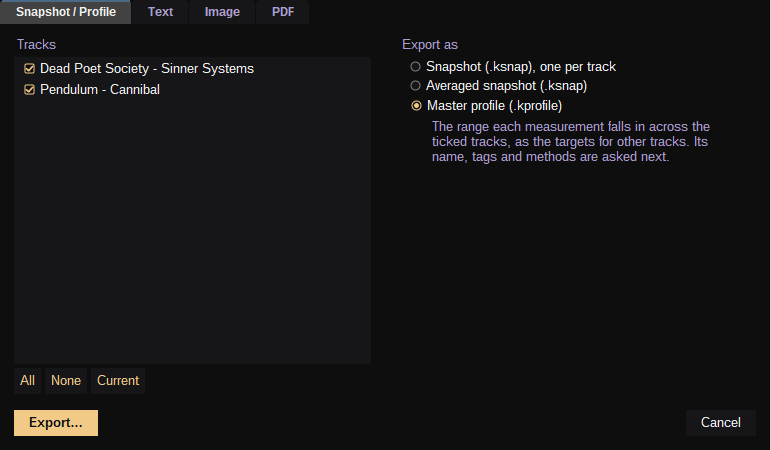
Snapshot / Profile.
- A snapshot each. A
.ksnapfile holds the complete analysis and reopens instantly, with no audio needed. Options cover whether to include the codec simulation and whether to record where the audio file was (leave that off for snapshots you share). - Their average as one snapshot, for "what does this album measure overall".
- A master profile built from them (see Profiles of your own).
Text
A plain-text report with a live preview. What you see is exactly what is saved or copied.
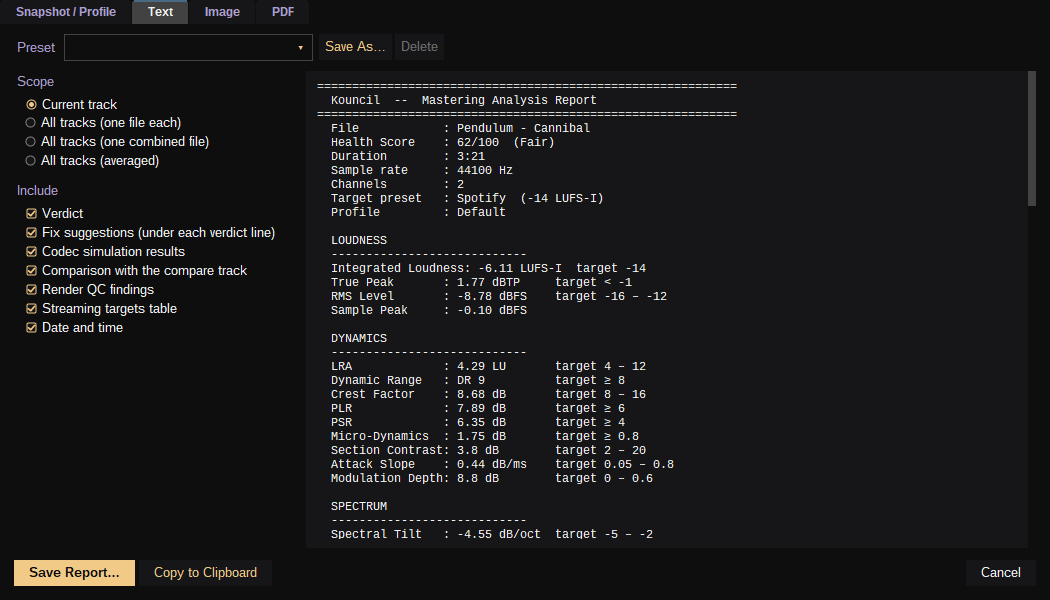
Text: the options at the left, the report as it will be saved at the right.
- Scope can be the current track, a file per track, or one combined file.
- Optional sections are the verdict, fix suggestions, the codec table, the comparison against the compare track, render QC, the streaming targets table and a timestamp.
- Copy to Clipboard for pasting into an email or a ticket.
- A report on several tracks ends with the Compare summary as a table and what was flagged on each track.
Image
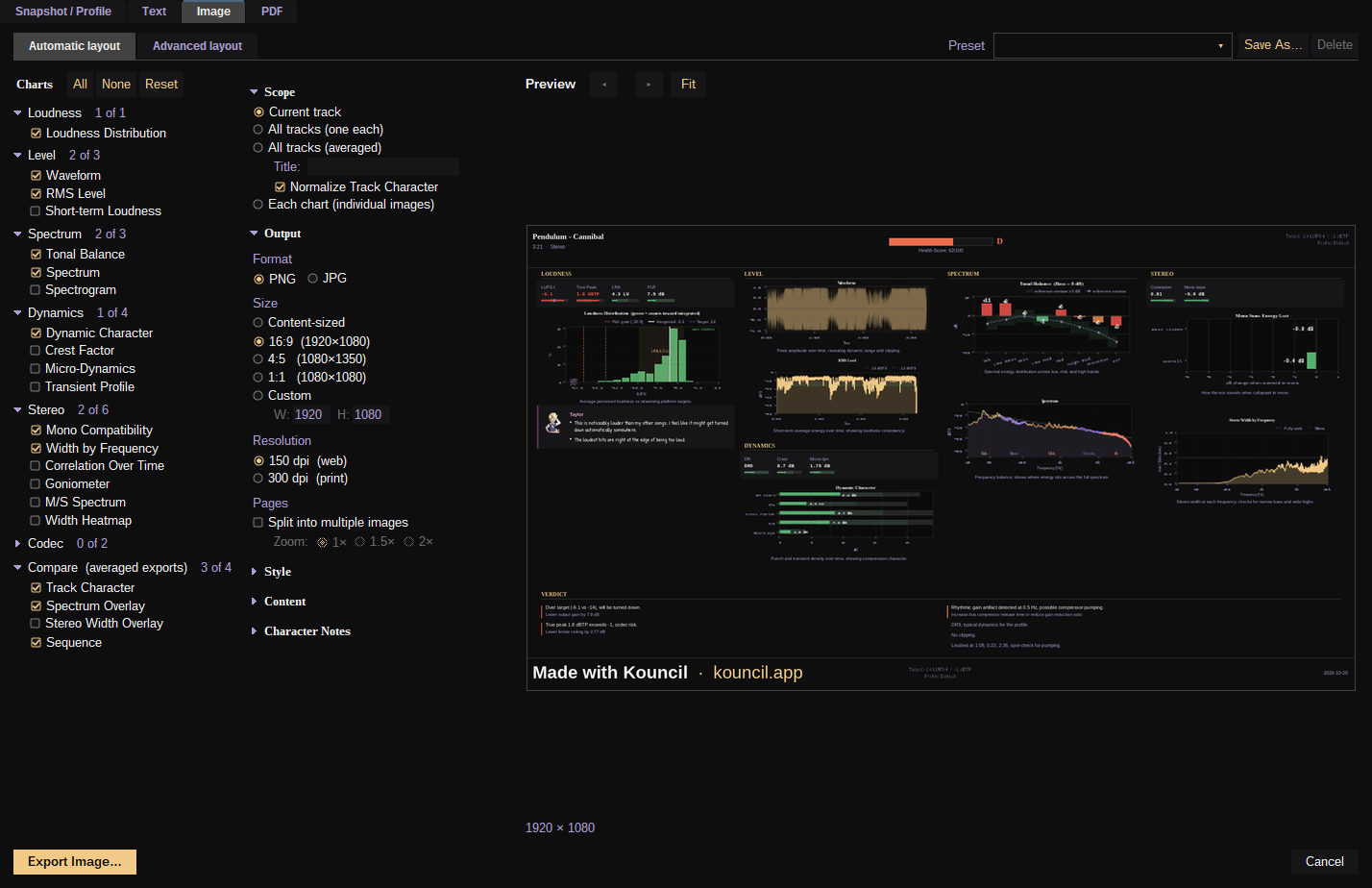
For sharing a result or showing off a master. Pick charts from the list on the left (grouped as Loudness, Level, Spectrum, Dynamics, Stereo, Codec and Compare) and set the rest on the right.
Image, automatic layout: charts, options, and a preview that follows every change.
| Option | Choices |
|---|---|
| Scope | Current track, every track (one image each), all tracks averaged, or each chart as its own image |
| Style | Your current skin, a clean light or clean dark style, or any other skin |
| Captions | Simple, Advanced, or none |
| Character notes | A speech bubble per section from the character best suited to it, with or without portraits and names, and a choice of which characters appear |
| Chart notes | An explainer above every chart |
| Compare overlay | Draw the compare source on the charts |
| Format | PNG or JPG |
| Size | Content-sized, 16:9 (1920×1080), 4:5 (1080×1350), 1:1 (1080×1080), or custom |
| Resolution | 150 dpi (web) or 300 dpi (print) |
| Split / Zoom | Spread a large selection over several images at 1×, 1.5× or 2× |
The tab's own two tabs, Automatic layout and Advanced layout, choose between a layout fitted for you and one you place by hand. The automatic layout fits everything you selected onto the canvas by itself, and the preview beside the options follows every change. Problem charts can be outlined in the warning color.
The options are grouped under headings that fold away (Scope, Output, Style, Content, Character Notes), and so are the chart groups, each with a count of how many of its charts are ticked. What is folded is remembered.
Built-in presets set everything in one click. They are Instagram Story, Quick Overview: Square, Loudness Analysis, Dynamic Range Analysis, Before/After Comparison, Reference Match, Mix Notes and Batch Loudness Check. Save As adds your own. A preset works in both layouts and never switches between them: picked in the Advanced layout without a hand-placed layout of its own, it arranges the page for its charts (Ctrl+Z undoes).
With the scope "All tracks (averaged)" the export gains the Compare tab's charts (Track Character, Spectrum Overlay, Stereo Width Overlay, Sequence) and a title of your choosing, such as the album's name.
Advanced layout
On the Advanced layout tab the middle of the dialog is a page editor with a live preview. Every piece of the export is a box you can move and resize by hand.
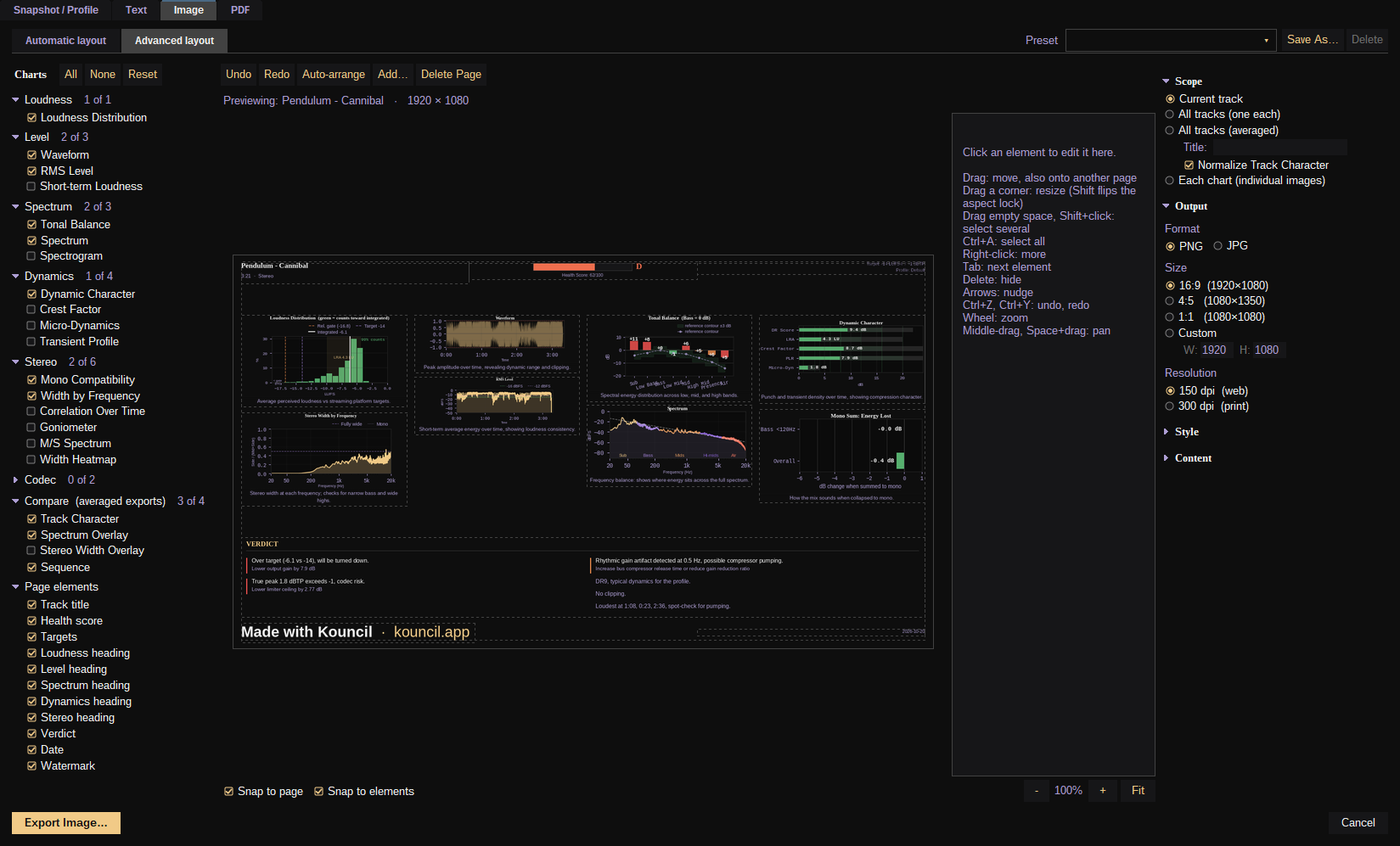
Advanced layout: the page editor, with the inspector for the selected element at its right.
- Elements. Title, health score, targets, date, verdict, section headings with their metric chips, each chart, character speech bubbles, and your own images (a logo, cover art).
- Speech bubbles. Any chart or section can have a description or feedback bubble from any character. Each bubble chooses its character, a critical or positive expression, whether to show the name and portrait, and which individual lines to include. The portrait can be popped out as its own element, face or full figure. The bubble's tail has a handle you can drag to aim it at anything on the page.
- Editing. Drag to move, drag a corner to scale, Shift to unlock the aspect ratio. Marquee and Shift+click select several, which can then be aligned and distributed. Snapping to page margins, centers, thirds and to other elements, each with its own toggle. Undo and redo. Arrow keys nudge.
- Pages. Add and delete pages. Elements drag between them. Auto-arrange shares the charts out evenly as a starting point.
- View. Zoom with the wheel, pan with the middle button or Space+drag.
- Images. Crop by dragging a frame on the picture in its inspector.
- Shadows. Every element has a Shadow section in its inspector: a drop shadow of its own shape (a speech bubble's includes its tail) with blur, opacity and distance, to lift it off whatever it overlaps.
- Your own bubbles and characters (when run from source). Add… puts a speech bubble with your own words or a character's picture on the page, as many as you like, tied to no chart.
A layout is saved with a preset and comes back exactly as you left it.
A print report with a cover page and the charts laid out over the following pages.
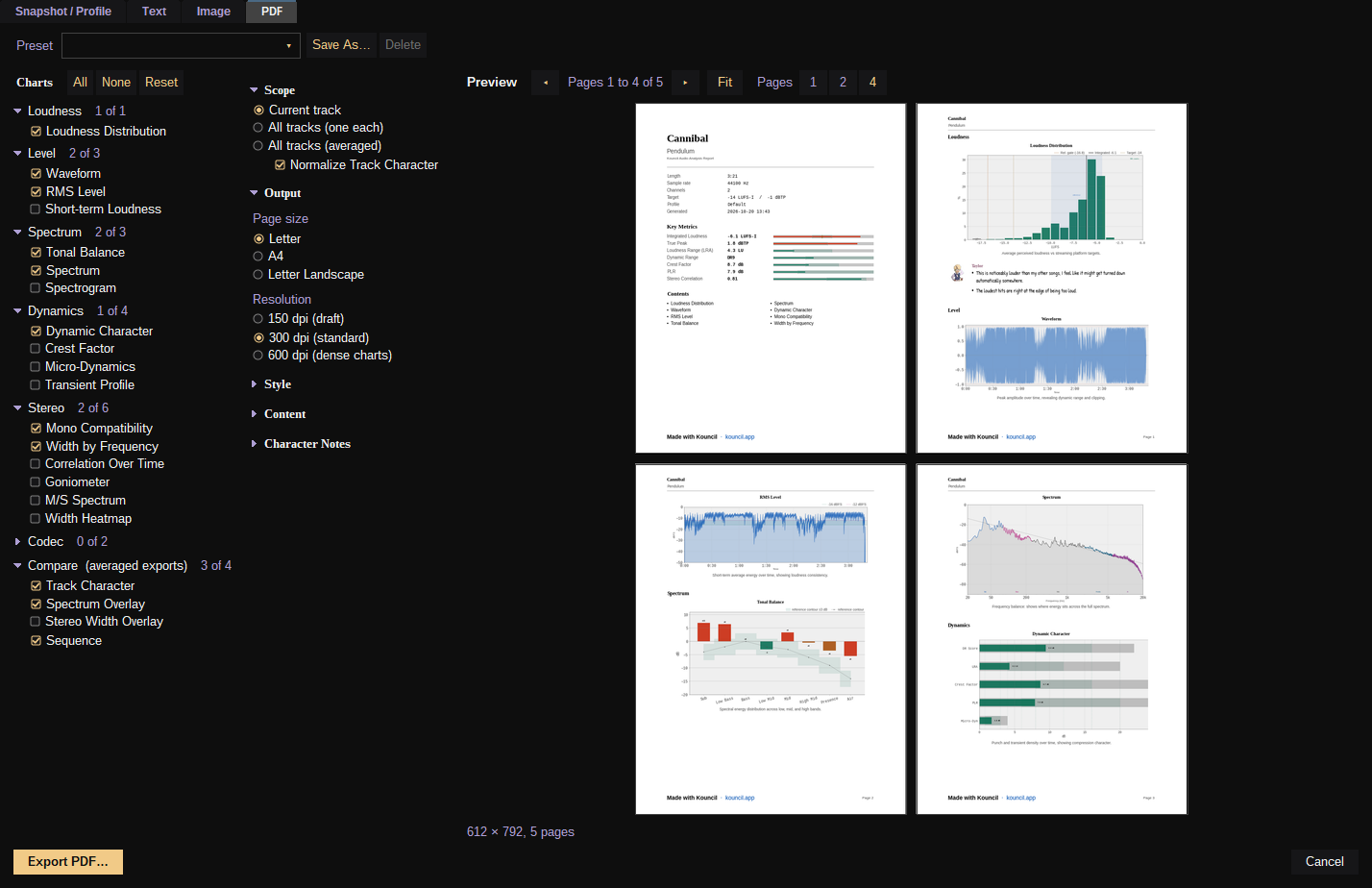
PDF: the preview shows the real pages.
- Page size is Letter, A4 or Letter Landscape.
- Scope is the current track, a report per track, or the group as one report.
- Captions, character notes and compare overlay work as on the Image tab. Pages are always in the clean light style, for print.
- Resolution is 150, 300 or 600 dpi.
- A preview shows the real pages before anything is written.
- Presets are Technical Feedback, Before/After Report and Batch Report.
9. Profiles of your own
A profile is only as good as the tracks behind it, and the best reference set for your work is the one you chose.
- Load the reference tracks. An album you admire, your label's back catalog, or your own best masters.
- Open Export > Snapshot / Profile, tick them, and choose Master profile.
- Give it a name, a description and tags.
- Choose how the numbers are worked out.
| Setting | Options |
|---|---|
| Target | Mean, median, or trimmed mean (ignores the extreme 10%) |
| Range | Standard deviation, interquartile range, percentiles, or min / max |
Vexie Hex
Not sure which to pick? Median and interquartile range. One oddball track in your set won't drag the targets around, and the range ends up meaning "where most of my references sit".
K0ndukt0r
Mean ± σ assumes a roughly normal spread and is sensitive to outliers. Median with IQR covers the central 50% and is robust. Percentiles (10th to 90th) cover 80%. Min / max accepts anything any reference did, so it flags almost nothing. For sets under about 20 tracks prefer the robust pair.The profile appears in the Profile Library straight away and works exactly like a bundled one, average spectrum curve included. Every statistic is stored for every method, so the methods can be changed later without rebuilding.
Profiles are single .kprofile files and are safe to pass around. They hold the names of the tracks they came from and never where those files were on your disk. An export judged by one of your own profiles says so.
For a large reference set, build the profile from the command line and let it run unattended.
10. Settings
Ctrl+, or the control at the right end of the header. Every change applies live while the dialog is open, and Cancel puts everything back. Every field has a tooltip.
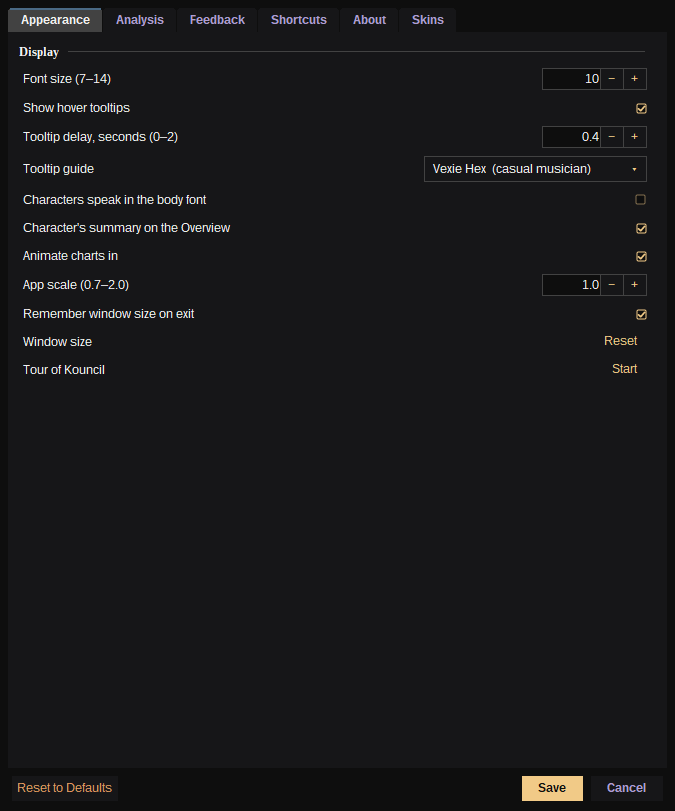
Appearance.
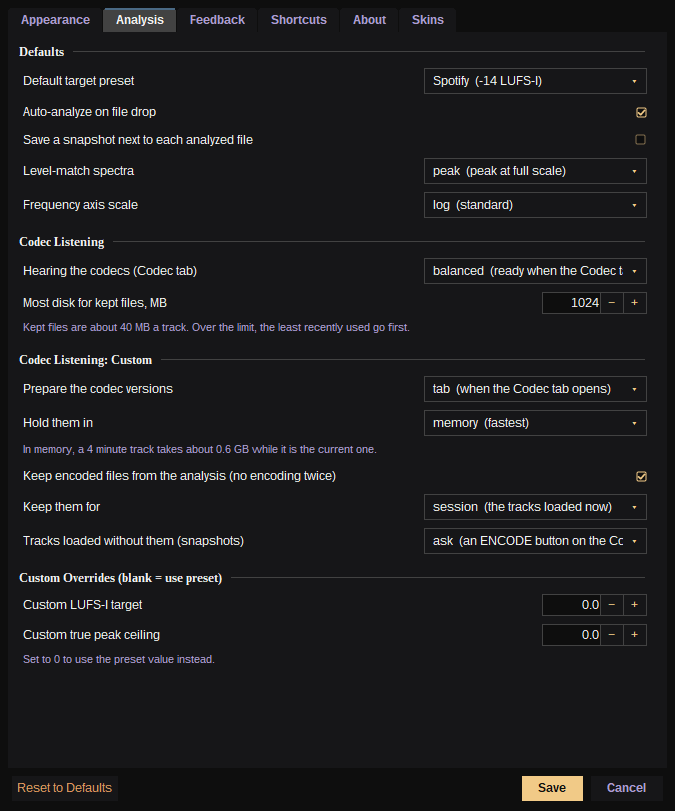
Analysis.
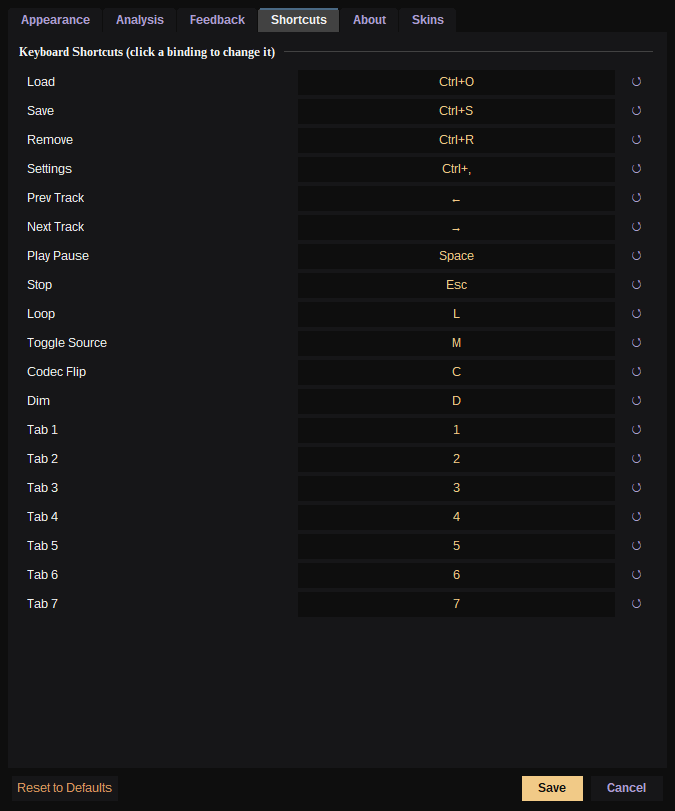
Shortcuts.
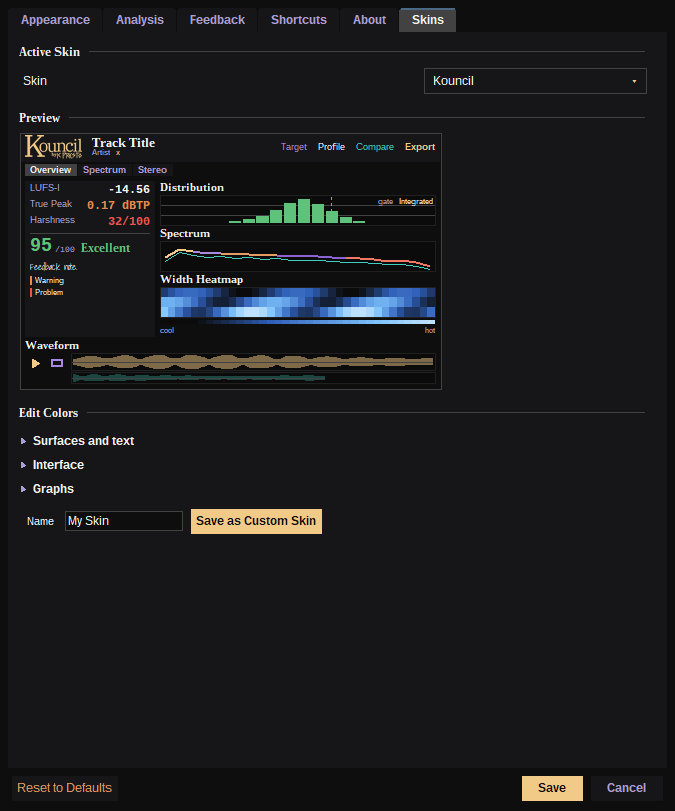
Skins, with the preview and the editor.
Appearance - Font size (7 to 14 pt) and app scale (0.7× to 2.0×). The whole interface follows both, charts included. - Tooltips on or off, their delay, and which character speaks. - Remember window size. - Tour of Kouncil: the four characters show you round the window again. Enter or the right arrow moves on, Esc stops. - Animate charts in. The first time you open a tab for a track, its charts draw themselves: bars grow from their base, curves rise, time charts and heatmaps fill in from left to right. Turn it off and they appear finished.
Analysis - Default target. - Auto-analyze on file drop. - Save a snapshot next to each analyzed file automatically. - Level-match spectra, which can be off (file level), peak, or -14 LUFS-I. This only affects tonal and spectral figures. Loudness and peak figures are always the file's own. - Frequency axis scale (log, mel or linear). - Codec listening. One choice of Instant, Balanced or Light sets when the codec versions are prepared and what they cost in memory and disk. Custom opens up each decision separately, and a disk limit applies in every mode. - Custom loudness target and true-peak ceiling.
Export - Which sections the text report includes.
Feedback - Which characters appear on The Kouncil tab.
Shortcuts - Every key binding can be changed. Click one, press the new key, and reset any of them individually.
Skins - See below.
About - Version, and a button that opens your data folder.
11. Skins
A skin sets every color in the app, charts and exports included. Twenty come built in.
| Idea | Skins |
|---|---|
| House style | Kouncil, Midnight |
| Plain dark | Slate, Deep Space, Monochrome |
| At home beside other audio software | Toolbox, Logical, Fabricator |
| Warm | Candlelight, Sunset, Matcha |
| Loud | Ultraviolet, Synthwave, Bubblegum, Terminal |
| Light | Lamplight, Cream, Print |
| Low vision | High Contrast, High Contrast Light |
Some have a single strong idea. Monochrome is grays, with red only for trouble. Terminal is phosphor green. Print is grays on white, made so three lines on a chart can still be told apart on a mono laser printer.
The picker in Settings > Skins lists each skin in its own colors. Changing skin repaints the window at once. Drag rows to reorder the list.
The skin editor has a field for every color, grouped as surfaces and text, the interface, and the graphs. A miniature of the app updates as you edit, and each field's tooltip says what it colors. Save as Custom Skin adds yours to the list.
Things a skin controls beyond the obvious.
- Interface accents and graph colors are separate sets, so a control and a chart line never share a meaning by accident.
- The chart plot area can be a different surface from the panels, even on the opposite side (dark graphs in a light interface).
- Heatmaps take a cool and a hot color from the skin.
- Each character's color.
- The four typefaces (headings, body, numbers, speech) can each be replaced.
Skins are plain JSON .kskin files. Drop one into the skins/user folder in your data folder and it appears in the list. The format is documented in skins/README.md, is forgiving of hand-editing mistakes, and tells you why a file couldn't be read instead of skipping it silently.
12. Command line
Kouncil can analyze tracks and build profiles with no window, for batch work and automation. Run from the source folder with Python 3 and ffmpeg on the PATH.
Taylor
This part is for people who like typing commands. Everything here can also be done in the window, so skip it if that's not you.python3 kouncil.py analyze TRACKS... --out FOLDER [--report]
python3 kouncil.py profile TRACKS... --out FILE --name "Display Name"
[--tags rock,1990s,loud] [--description "..."]
TRACKS can be audio files, snapshots, folders of either, or a mix.
- analyze writes a
.ksnapper track, the same file the app saves and opens.--reportadds the text report beside each. - profile builds a
.kprofilefrom all the tracks.--snapshots FOLDERkeeps each track's analysis and reuses it on the next run, so adding two tracks to a reference set means analyzing two tracks.
| Option | What it does |
|---|---|
--no-codec |
Skip the codec simulation. About twice as fast. |
--normalize off\|peak\|lufs |
Level-match the spectra. |
--jobs N |
Tracks at once. Defaults to half your cores, 8 at most, fewer when memory is short. |
--recursive |
Look inside subfolders. |
--target-method, --range-method |
Profile statistics, as in the app. |
A track that fails is reported and left out, and the rest carry on.
13. Keyboard shortcuts
All of these can be rebound in Settings > Shortcuts.
| Key | The app |
|---|---|
| Ctrl+O | Load |
| Ctrl+S | Export |
| Ctrl+R | Remove the current track |
| Ctrl+, | Settings |
| Left / Right | Previous / next track |
| 1 to 7 | Switch tab |
| Key | Playback |
|---|---|
| Space | Play / pause |
| Esc | Stop |
| L | Playback mode (Full, Range, Loop) |
| M | A / B between the track and the compare source |
| C | Codec tab, flip between the original and the last codec heard |
| D | Dim by 12 dB |
14. Files and privacy
Kouncil makes no network connections.
Settings, the last session, your skins and your profile library live in one folder that updates and uninstalls leave alone.
- Windows
%APPDATA%\Kouncil - macOS
~/Library/Application Support/Kouncil
| File | What it is |
|---|---|
.ksnap |
One track's complete analysis. Reopens without the audio. |
.kprofile |
A master profile. |
.kskin |
A skin. |
Older snapshots and profiles are brought up to date when loaded. A damaged or mistaken file produces a readable error and nothing else.
If something goes wrong, the details are written to kouncil_crash.log in the data folder.
15. How it is built
For the curious, and for anyone evaluating the engineering.
Vexie Hex
Short version: it measures to the same standard the streaming services use, it really runs your track through the codecs, and playback doesn't stutter while it's busy thinking.- Python, Tkinter, NumPy / SciPy, Matplotlib and Pillow. No web stack and no framework. Windows and macOS builds bundle Python and a purpose-built, audio-only LGPL ffmpeg.
- Standards-checked measurement. Loudness is implemented from ITU-R BS.1770 with the standard's own filter coefficients and is tested against EBU Tech 3341 reference signals and cross-checked against ffmpeg's
ebur128. True peak is oversampled. Every algorithm is written up in ALGORITHMS.md. - Real codec round-trips. Codec figures come from an actual encode and decode, sample-aligned by cross-correlation, compared against a per-quarter-Bark masking threshold. No modeled approximations.
- Thresholds from data. The baselines that decide what gets flagged were set from measured commercial masters (2,499 of them across 100 genres), not from rules of thumb.
- Playback in its own process. The audio engine runs as a separate process with its own interpreter lock, sharing decoded audio through shared memory and exchanging state through a small shared control block that neither side ever waits on, so analysis and chart drawing can't cause dropouts. Worst-case block timing under load went from 126 ms late to no underruns at a 93 ms buffer.
- Click-free DSP in the monitor path. The audition filter glides in log frequency and crossfades between coefficient sets, with a look-ahead limiter behind it.
- A responsive UI on a toolkit not known for it. Analysis is staged and threaded with memory-aware concurrency. Charts render ahead on worker threads and are shown in one step. Tabs are prebuilt in the background. Window resizes swap the live widgets for a snapshot until the drag settles, which took a resize step from about 2000 ms to 140 ms.
- Resolution independence. Every dimension derives from the font size and app scale, and custom-drawn controls replace the native ones that don't scale.
- A full theming system. Twenty skins as data files in a documented format, with separate roles for interface, graph, status and plot colors, applied live to widgets, charts and exports.
- A layout engine and a layout editor. Image export has both an automatic fitting engine and a hand-placement editor with snapping, multi-page support, undo and presets.
- Written, tested content at four levels. Every chart, metric, chart zone, setting and skin color has explanatory text for four audiences, and tests fail when one is missing.
- A headless command line over the same analysis code, and a test suite covering the loudness standard, codec alignment, file robustness, session integrity, the audio engine and the UI's layout rules.